Many people are probably wondering how Capture the Flag has the barriers. I will now show you how to do that.
If you don’t want an indicator of where the barrier is, then skip this process.
Barrier Indicator
Step 1: Add a barrier device.
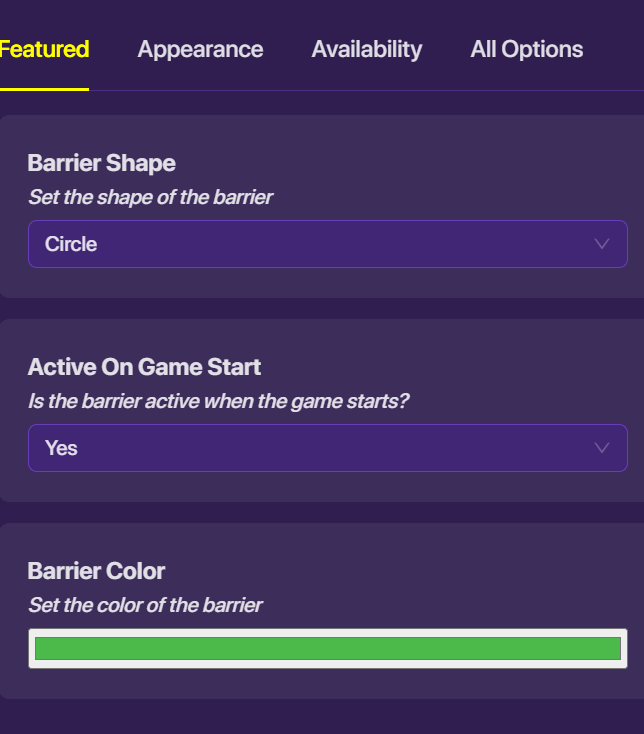
Step 2: Go into the barrier settings. Change the settings around in Featured to look like this: You could have any color you want; I chose green, like Capture the Flag
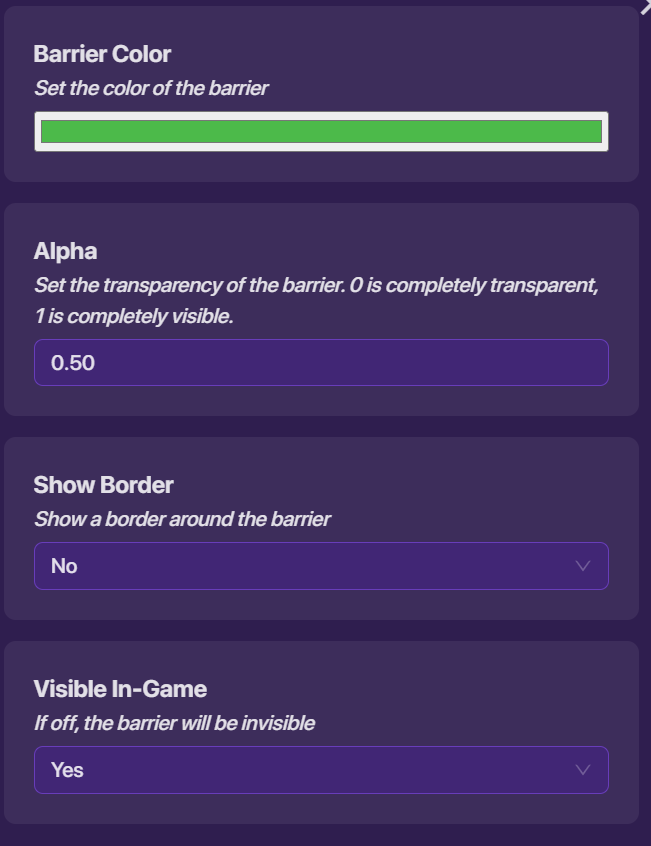
In Appearance, to look like this:
And in All Options, change “Collision” to no.

The Buying of the Barrier
Step 1: Add a vending machine.
Step 2: Open the vending machine, and change these settings;
In featured:
“Grant Item” → “Transmit on Channel”
“Item Required” - anything you want.
“Transmit on Channel” - Make a random channel
“Amount of Required Item” - anything you want.
“Visible in Game” → “No”
In Transmit on Channel:
“Grant Item” → “Transmit on Channel”
“Item Name” - Anything you want.
“Item Description” - Anything you want
In availability:
“Deactivate on Purchase” → “Yes”
Once you are done with that, move the vending machine to on top of the barrier.
The Final Step
Now add a barrier prop. Put that prop on top of the vending machine and barrier, then open the settings.
Go to “Availability”, and change the settings to this:

And Voila! You now have a buildable Barrier!

