DO. NOT. EDIT.
Simply suggest things to add, I’ll add them myself.
Introduction
Hello readers, have you ever just looked at a prop and though, “It’d be cool if it could move.”?
You might be surprised that everything I just mentioned is possible, with the use of animation.
Yep! The same exact thing you might make in a flipbook [1]
Or what you might find somewhere like Disney.
And that’s why I’m here. I will teach you the wonderous art of gimkit animation, and what you can do with such power.
Enough yapping, proceed to chapter 1.
Chapter 1, How does it work?  READ THIS FIRST:warning:
This chapter assumes you know:
Wires
Channels
Triggers
Wire repeaters
Explaination of concept (Simple)
Let’s say you hide something, it obviously disappeared.
But what if you hide something, but at the same time, show something somewhere else?
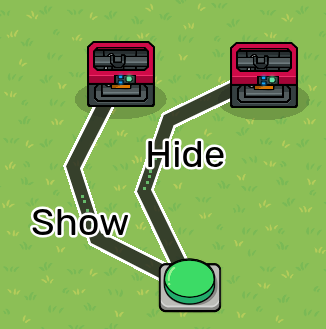
Go ahead, open up GimKit and try it.

As you just witnessed, the prop you used teleported
With a creative imagination, you could say it moved!
It’s not that convincing right now, but what if we try making the prop stay somewhere for 1 second, then leave?
If that didn’t make any sense, just build this.
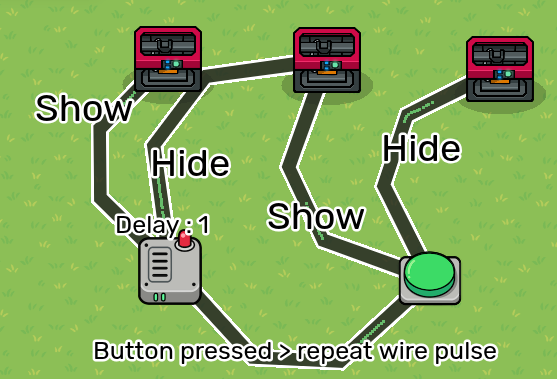

now your prop actually looks like it just moved!
FELLAS, what we just learned is animation! Good job!
specifically, you learned simple animation
More Complicated Animation (Advanced)
Are you having fun learning? Hope you are, since I am about to ask something very unreasonable 
For now, make anything with around 5 props, it doesn’t have to make sense, I only care if your creation has 5 props in it.
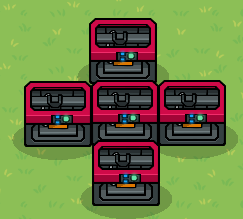
Did it? Good job!
Now, copy whatever you made.
Do you remember our first animation, where a prop seemingly teleported?
Do that again.
It should look like this, [2]
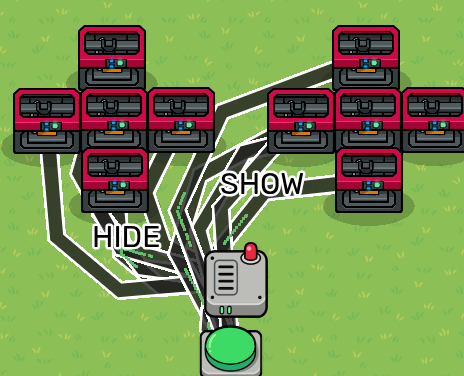
Now, answer me. Wasn’t that really annoying? Now consider, if you’re making a good animation, you might need to use HUNDREDS of wires! that’s insane!
That’s not even talking about the crazy memory all those wires take, and lag!
In short, doing that is completely unnecessary, please don’t do it!
Instead, let’s try this…
Delete all the wires and wire repeaters, and grab a trigger from somewhere,
Your set up should look like this
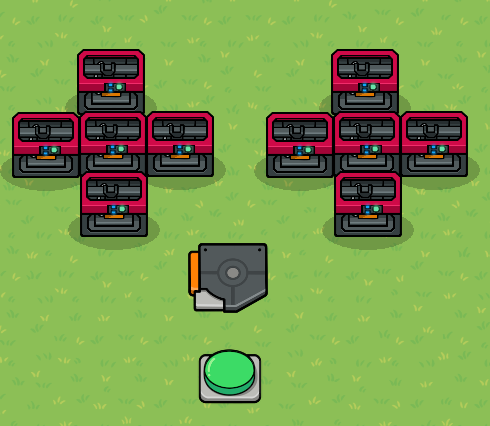
Now, listen close, cuz we are using channels now, images won’t help that much.
Give the button a channel that will activate the trigger.
Give the trigger it’s own channel that will either show or hide props.
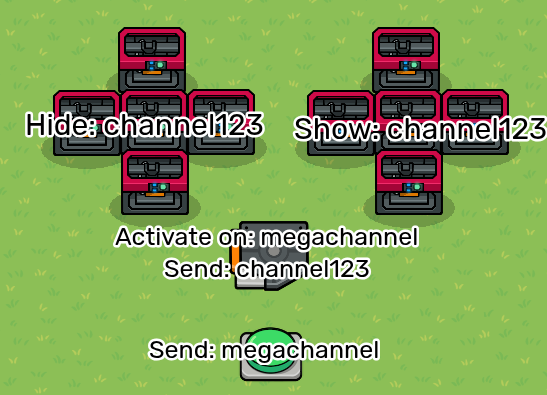
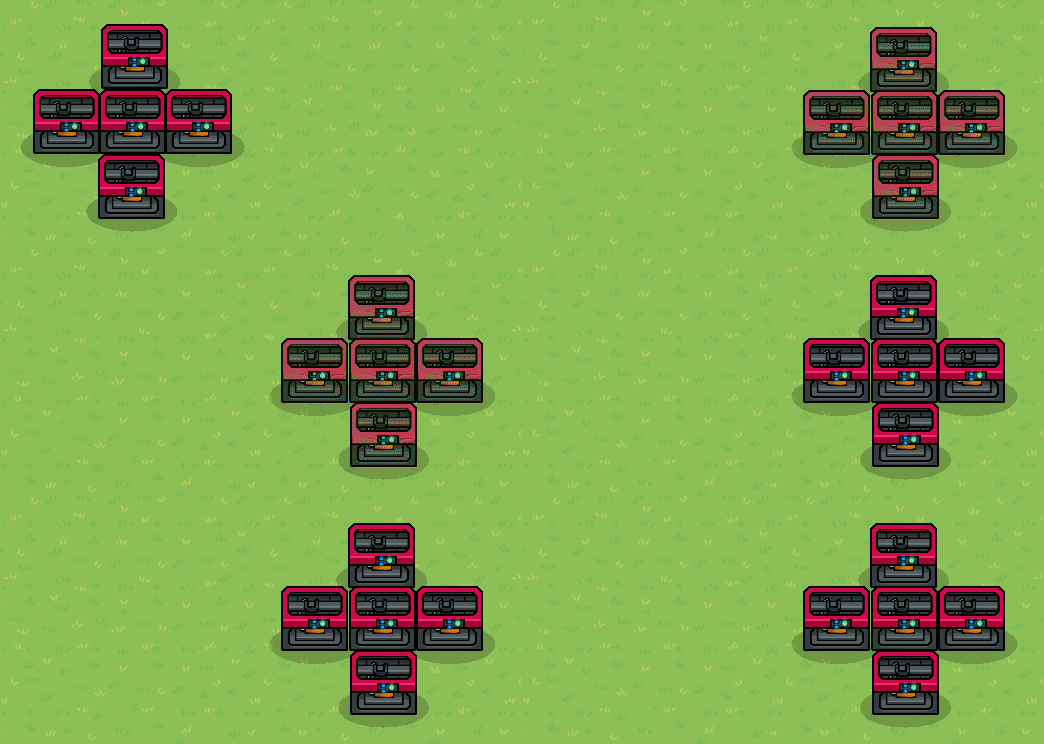
Alright, we figured out how to make one frame using this technique, but what about making it look likes it’s moving?
No worries! We’re yapping about that right now.
Answer me this, what’s stopping a trigger channel from activating another trigger?
.
.
.
Exactly, try doing that now
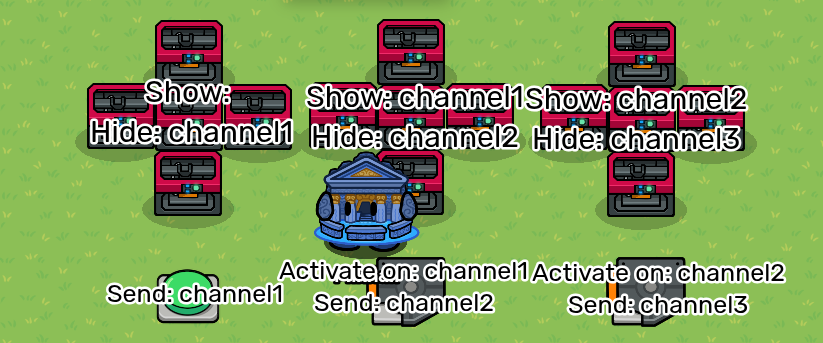
I’d put a gif, but the file size is too big and my gif compressor is broken.
Sorry lmao
ANYWAYS, see? Now we don’t need to spend hours placing wires and then deal with that monstrosity,  HOORAY
Now, here’s another cool thing
copy your props, and try your animation again
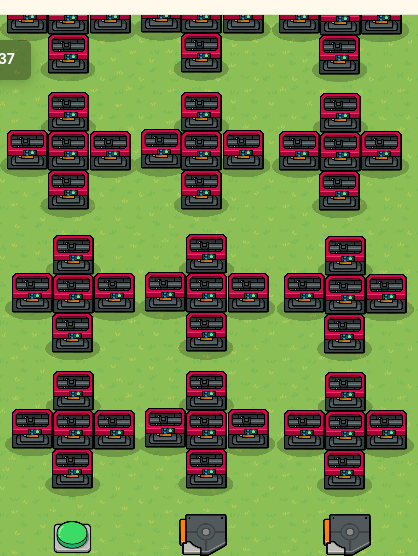
Chances are, all of them still work! There is NO limit on how much stuff a trigger can animate!
FELLAS, what you just learned is Advanced animation, congrats!
Decent guide, yes it's made by me
Chapter 2, Differences between Simple and Advanced
This chapter assumes you know:
SImple Animation
Advanced Animation
Memory
If you just learned how to animate, it probably left you even more confused.
Cuz what in the orbital missle strike is the difference between simple and advanced animation? Why should I use it?
I mean sure, Advanced Animation is easier, but why shouldn’t I use it all the time?
Well for that, we made a chart
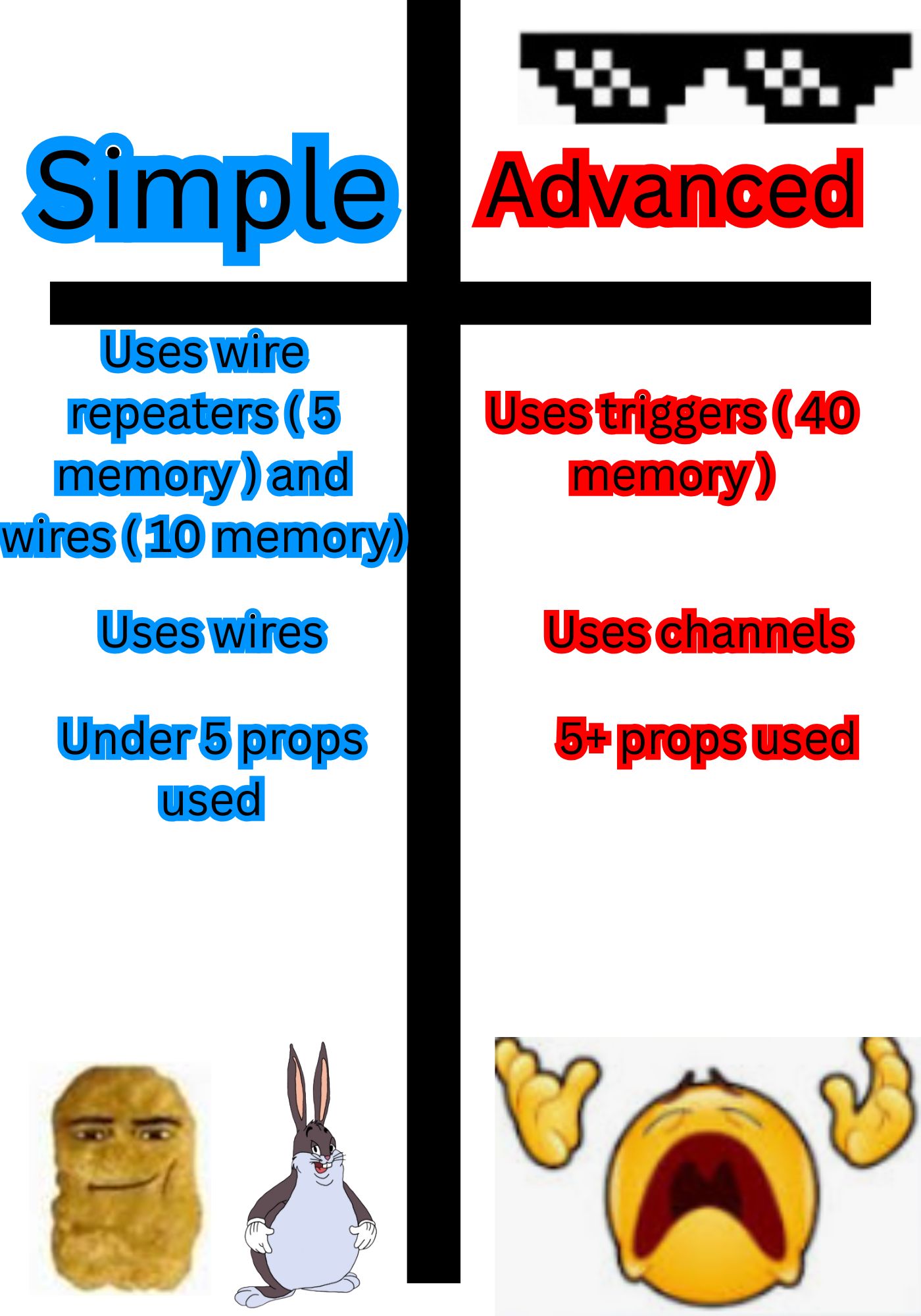
Basically, memory and the size of whatever’s animated chooses which to use.
You already saw in chapter 1, we used simple animation for 1 animated prop, advanced for 5 animated props.
Now why does that matter? Let’s pull out a calculator.
Lets say u make an animation of 2 props.
5 [3] + 20 [4] = 25
40 [5] = 40
See? Simple animation is cheaper.
Now, lets say I make an animation with 7 props.
10 [6] + 70 [7] = 80
40 [8] = 40
This time, advanced animation is better!
Plus it’s annoying to deal with 50 wires, but 3 is ok 
The Third Method
You might be thinking,
“WDYM ANOTHER TYPE, WHY DO WE NEED SO MANY?”
“WHY WASN’T IT MENTIONED IN CHAPTER 1?”
Once again, memory.
And I wasn’t the one to make the method so I’ll just add the guide.
In short, instead of using several devices to activate each frame. It uses properties to send out numbered channels, like advanced but with blocks!
As a good animator, you can use it if you’re using a bunch of frames, I’d say around 15.
Chapter 3, Where to use it?
This chapter assumes you know:
How to Animate
Movement
This one is obvious, this is a guide for the illusion of life, something that moves.
I can’t state every type of movement you can add,
but I can add a lil’ list for you to check!
- Moving objects
This can be something thrown, pushed, an NPC walking, a bunch of stuff.

- Idle Animation
cool, you made a good looking Npc or map, but you can do even more!
It doesn’t need to be at important areas or NPCs, this could be a tiny simple animation making an Icicle shine, a fish jump, or just make your map look better in general.
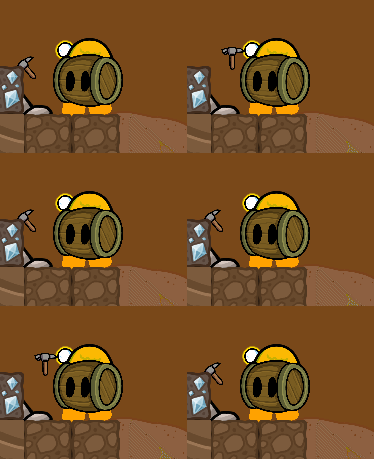
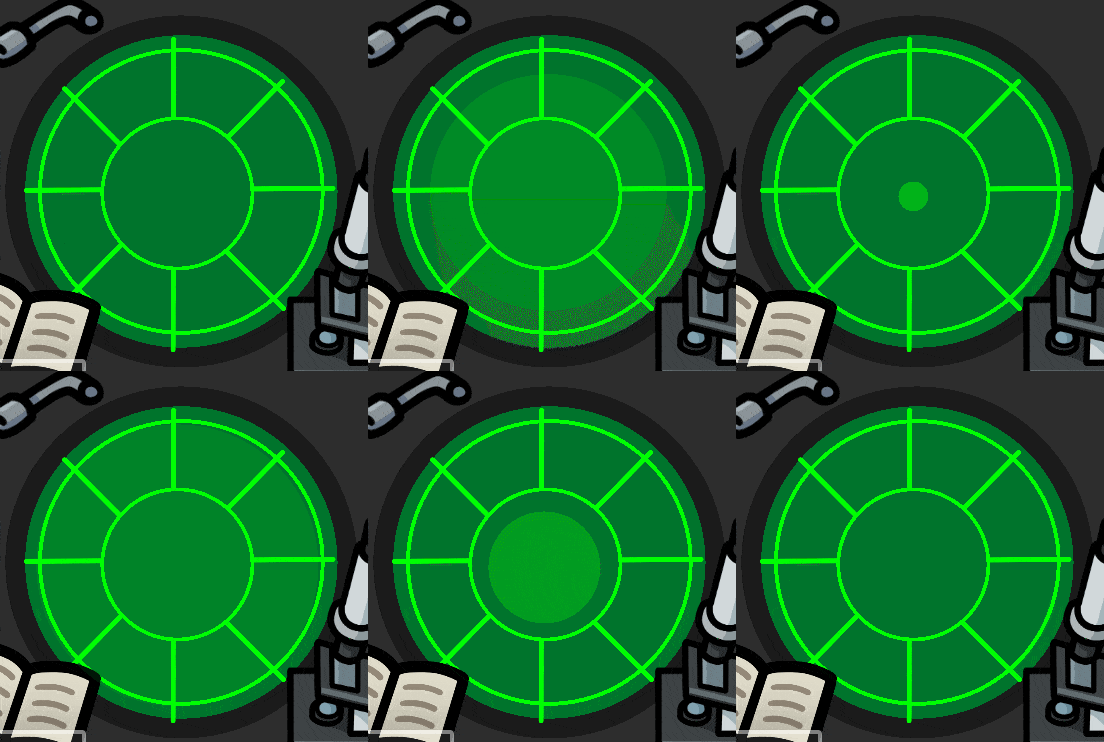
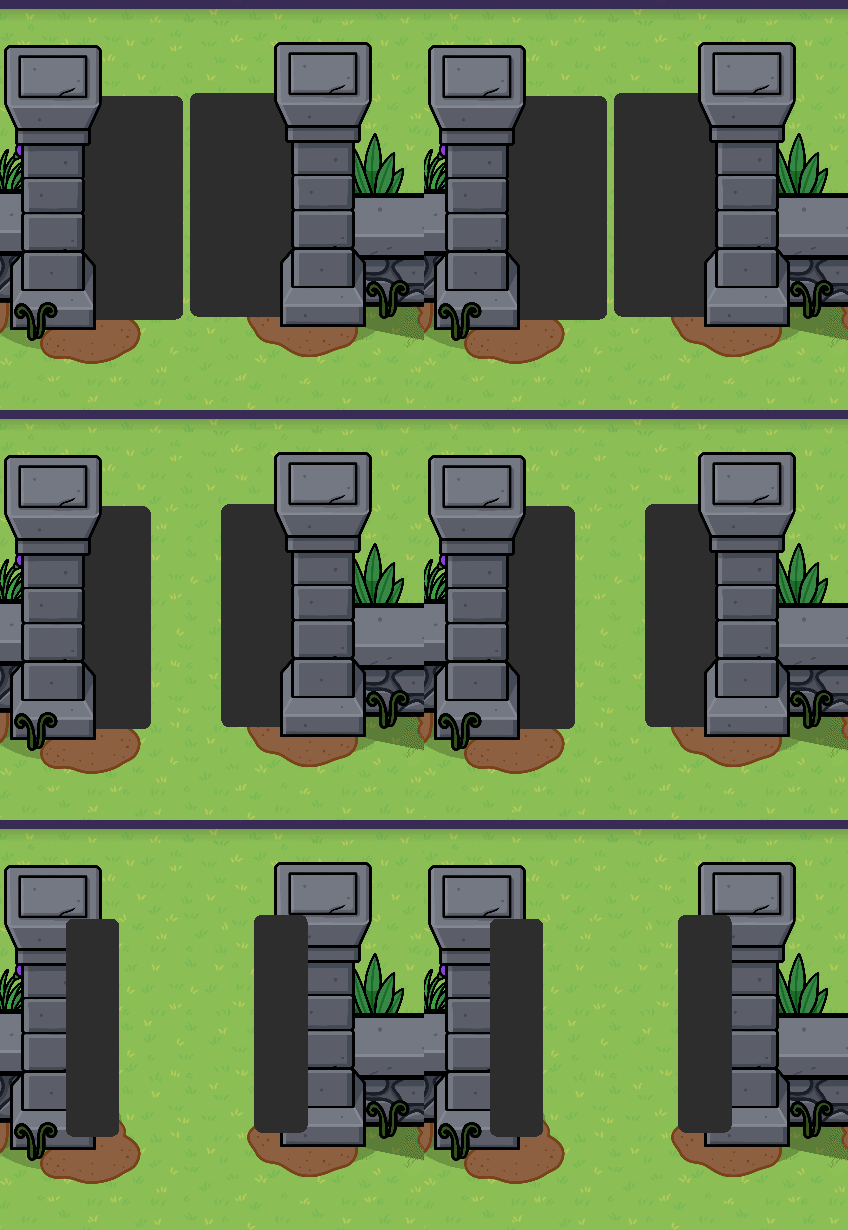
Doesn’t that cave and radar feel so much alive now?
yes they do - Transitions
Having the player just teleport somewhere or deactivate/break a prop technically works, but its boring. Use animation!
Effects
Let’s think [9]. In animation, you’re just using frames to gradually change something.
Most of the time, thats the location of something, Movement, but there are plenty of other ways you can change a prop.
And I’m making a list agin.
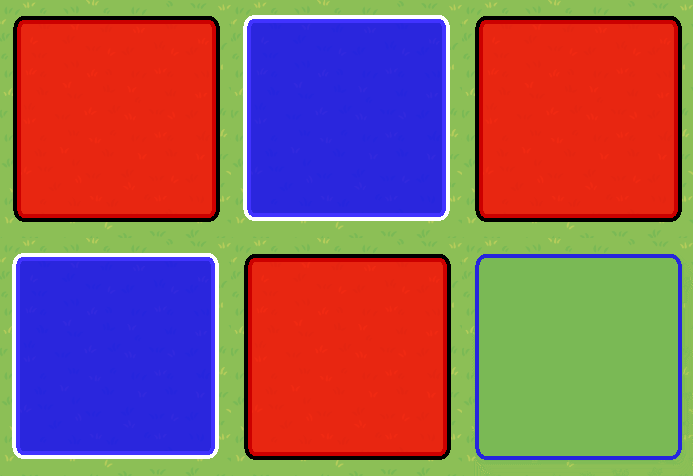
- Color change
If you relace something with a different colored version, it will change color!
Try this for an day/night cycle or something idk
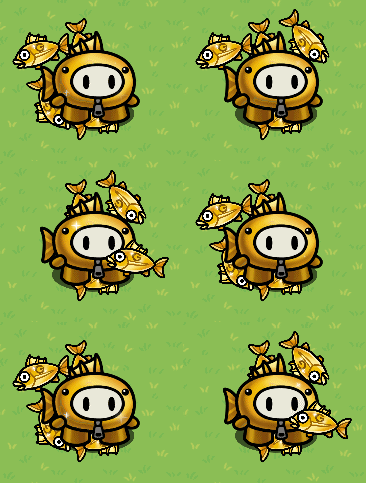
- Effects around something
Wouldn’t it be cool if you had a Gimfish aura? well you can have one, congrats!
But this could also be something like bees around a hive, or a glow at a lamp.
Chapter 4, Miscellaneous
This chapter assumes you know:
Nothing, really
This is just things you should probably know when animating
Speed of Show/Hide
To explain this, you don’t really need to make any animation.
I can just show it myself anyway.

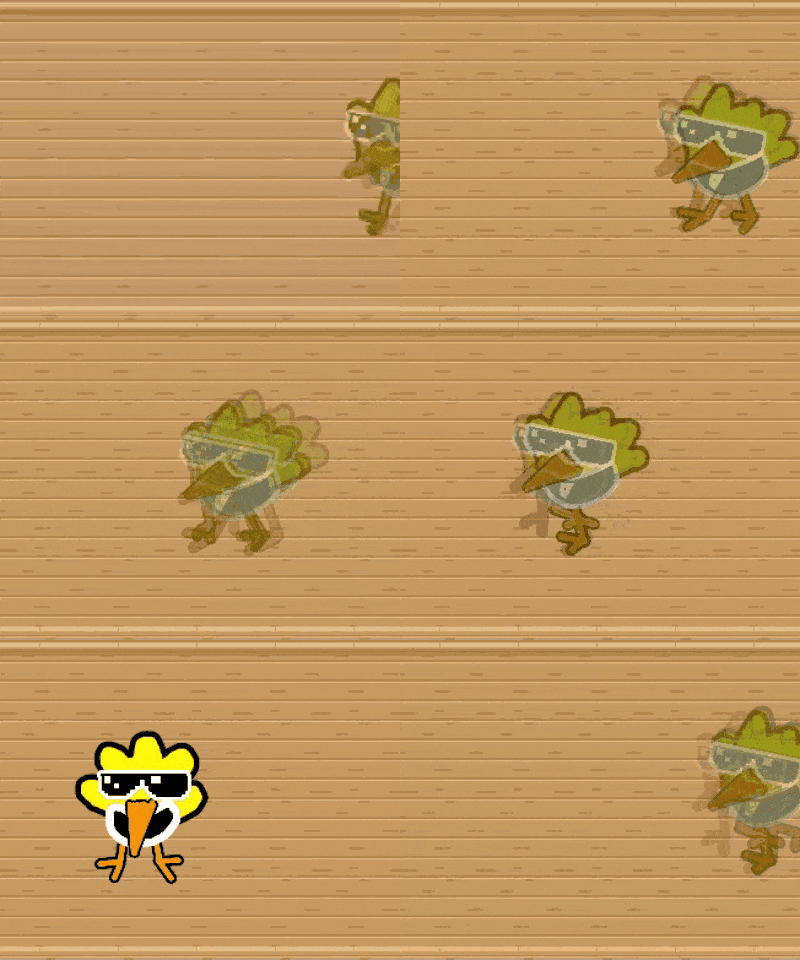
See? Almost none of them show/hide at the same time.
- Barriers, sentries, and item images are instant.
- Props are a little slower.
- Texts and custom shapes are very slow
Now, why does it matter?
Because your animations can start looking really weird and faded.
How do you avoid this?
If you’re not using too many frames per second, you’re fine
If not, try avoiding the props/devices that can cause problems.
You can also try checking this help topic
Speed of show/hide
Memory Requirements
This guide might make you think, “YAY, I’m gonna add a bunch of animations to my game!”
And most of the time, sure! Animation can easily fit into a game.
However, it is still important to be mindful of your memory bar.
For example, let’s return to the walking zap. [10]
~Pulls out a calculator~
(24 x 5 [11]) x 75 = 9000
5 [12] x 500 [13] = 2500
24 [14] x 40 = 960
I spent 12,460 memory on that animation!
Yes, it is still possible to make this in a game, but that’s still an insane number.
In short, animation can be expensive!
Animation of Custom Shapes
Could you place a custom shape for me? Pretty please?
.
.
.
You did? Good.
Now, open up the menu, and you’ll see … ANIMATION?
Yep, custom shapes have their own animation.
But then, why does this guide exist if we can use that?
Well, custom shape animation is..basic, at best.
- There are only 3 options
- You can only use that one shape
- There is very little control over the animation, only around 5 options
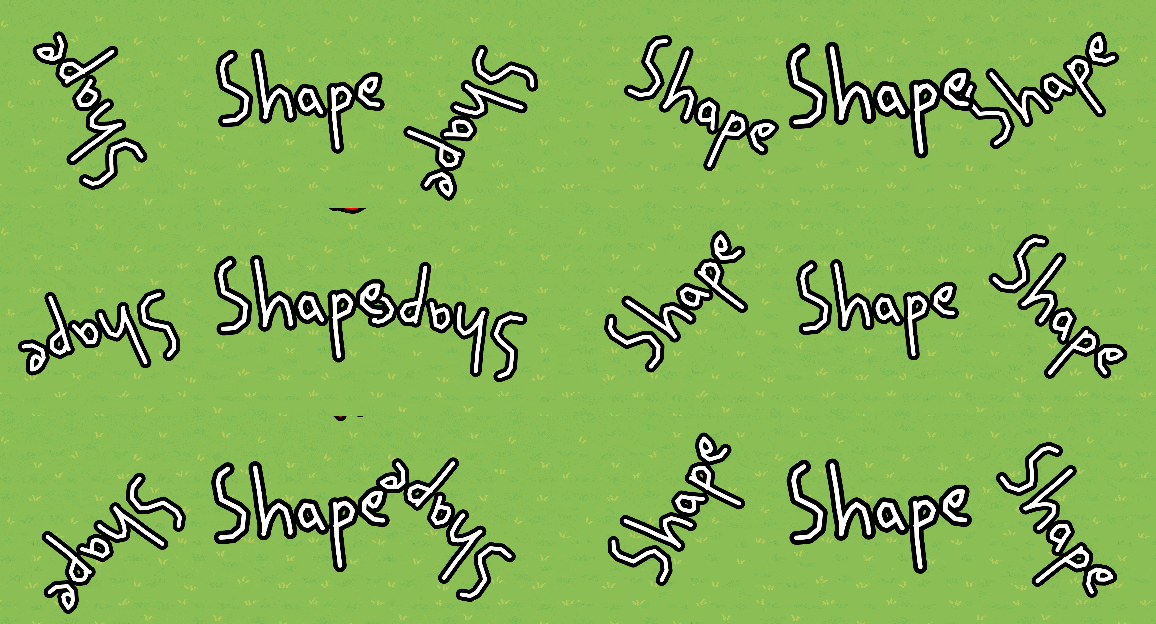
I’ve honestly never used this type of animation, but you could probably find a way to use it.
The 12 Principles of Animation
Animation, it is very cool, yes, very cool.
BUT
It can be EVEN cooler, how? The 12 Principles of Animation.
What are they? They are a couple of rules/tips that can be used in animation to make it look better, more alive, pretty much just imporved overall.
List of all Principles [15]
- Squash and Stretch
Like when a ball flattens when it hits the ground, shape get exaggerated - Anticipation
Yk how in baseball, you swing the other way, then hit the ball? Same thing.
Make the person look prepared to do some action. - Staging
In this scene, the broker gim is the main subject, right? RIGHT?
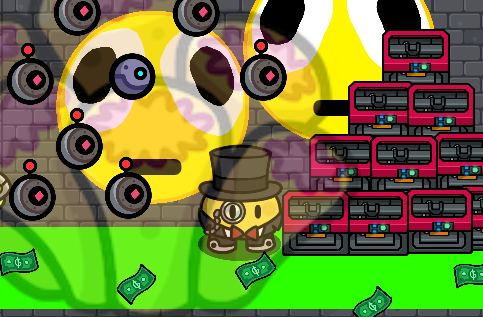
No. The rest of the scene is stealing the attention, avoid that.
- Straight Ahead Action and Pose to Pose
This principle is about how you decide to make your frames. Either making them one by one chronologically or, drawing important frames first and then the rest of the frames. - Follow Through and Overlapping Action
Let’s say you have a person moving, stuff like their hair will continue to move a little after the person stopped. Don’t make everything suddently stop moving. - Ease In, Ease Out
Let’s say a car starts driving, it’s a little slow at the start and the end. Add a few frames over there to make that. - Arcs
When you do something like throw a ball or swing a hand, it goes in an arc right?
Yes it does, that’s it. - Secondary Action
Actions that aren’t part of the main action/subject. Like a tiny birds flying in the back round or a friend deciding to break you. - Timing
This principle is about getting time right, like heavy things falling faster, your animation will feel more alive if done correctly. - Exaggerism
This is pretty much like squash and stretch, exaggerate movement/actions - Solid Drawing
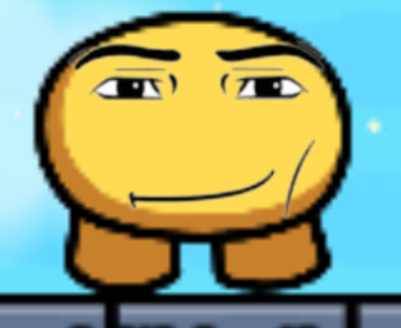
This one is weird, but, basically you need to make the images looks good and to avoid characters looking lifeless or the same. - Appeal
A character is supposed to be intresting, charismatic [16]
CLICK ME FOR MORE DETAIL
If you want to try them, however, the size of your animation would have to be pretty large, since anything small doesn’t have enough space/frames to use them.
That is also why this is in miscellaneous, this guide isn’t really made for high quality animation.
Conclusion
And with that, that’s pretty much it!
If you read the entire guide, thanks
I wrote this guide to show and explain to my fellow forumers that beyond simply using props and maybe some barrier art to decorate. You can make an entire new form of decoration, all with just connecting your stuff to a wire repeater or a trigger.
Just image how much is possible with animation, moving gims, entire videos in gimkit, ANYTHING!
Now go, and make something move!
Thanks for reading!
Contributors
Zappy_Zaptos - Pretty much wrote everything
Kormorant - Posted post for wiki
cheezesRcool - Gave ideas
s0urgumm13z - mastar of grammer amd amezing mtention to detial
Mualani_Star & some_kid- Restored the guide after it was griefed
It works in a similar way too ↩︎
Hint: I used a wire repeater with no cool down to avoid maxing out my wires ↩︎
wire repeater ↩︎
wires ↩︎
Trigger ↩︎
wire repeater ↩︎
wires ↩︎
Trigger ↩︎
Are you thinking? You better be ↩︎
If you don’t recognize him, thats not a problem. ↩︎
custom shapes in every frame ↩︎
Custom shapes ↩︎
Memory for designing each new shape ↩︎
Triggers ↩︎
This turned out SOOOO boring ↩︎
Rizz ↩︎
 : The Ultimate Guide to Gimkit Animation.