Welcome, people/alien/teto/miku/neru whatever, have you ever struggled with cut-scenes, and when you search it up, some random, no picture, outdated, guide just shows up and its so difficult that’s literally gimpossible? (umm actually, i cannot guarantee this is super easy lol) Well, worry no more because this is the perfect, easy guide for you! Disclaimer: This Guide is NOT flawless. Extra devices and stuff might be in my design, so please be nice and tell me if I’ve done anything extra.
Materials
Triggers (At least 7)
Barrier
Camera Point
Text (Custom shape and barriers if you want to make barrier art)
Button/Zone/Anything that can broadcast
Making the cutscene
Place down a barrier and set it to any color you want.
Make sure the alpha is set to 1 and the border is disabled
Alright, here’s where it gets tricky. For the triggers, you will need to use channels.
First, make at least 6 replicas of the first trigger (the more triggers you put, the smoother your cutscene will be. im using 7 triggers here so objects in this cut-scene can only move 6 times.)
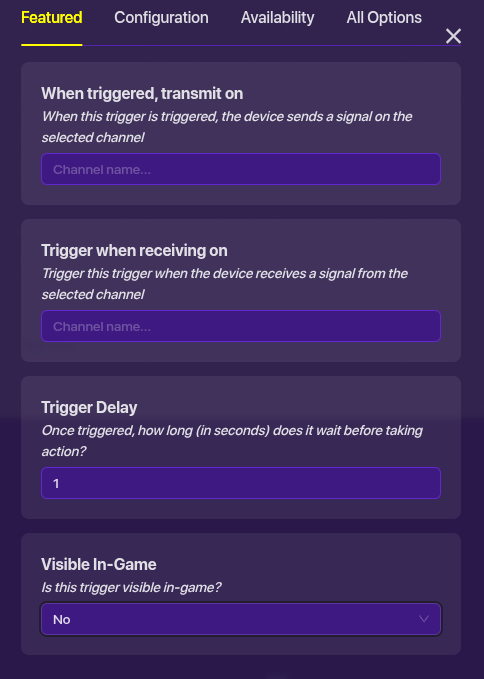
and apply these channel settings for the first trigger
Trigger when receiving on: A
When triggered transmit on: B
Second trigger channel setting
Trigger when receiving on:B
When triggered transmit on: C
Third trigger setting
Trigger when receiving on: C
When triggered transmit on: D
Notice a pattern? When a trigger is triggered, it sends a signal to the next trigger so the next trigger can trigger the other trigger (hey this is really fun to say) and the cycle repeats. Follow that pattern until all the triggers have a channel. Then connect a button/zone/anything that can brodcast to the first trigger like this: (also connect it to the camera point)
When [Device] activated → Trigger
Alright, now the tricky part is done, guess what? There’s more! Now we have finished the mechanics, is time to do the fun(ner) part.
Now in this guide I’m using barriers; however, if you want to use text, it’s basically the same thing, so i won’t make any further explanation.
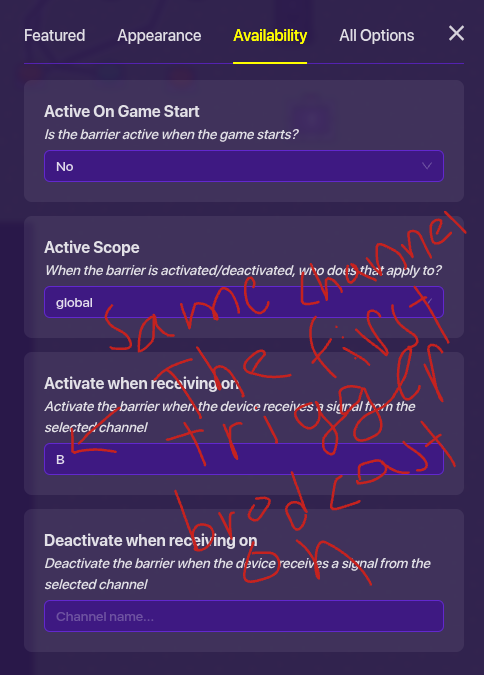
Get at least 1 barrier and apply these settings
In this scenario, Lets say example 1 is throwing a projectile at example 2, so both of example 1 and example 2 will have the same setting. Ok, based on how many triggers you have, the barrier amount will be the amount of triggers minus 1. in this case, i have 6 triggers (the extra one won’t participate in the mechanics), so I will get 5 barriers, not including barrier 1 and barrier 2
For the barrier that is moving, i will make a couple of examples here:
Moving barrier 1
Activate when receiving on: B
Devicate when receiving on: C
Moving barrier 2
Activate when receiving on: C
Devicate when receiving on: D
Moving barrier 3
Activate when receiving on: D
Devicate when receiving on: E
Yes is almost the same thing as the triggers.
Ah, that was long. Now for the last step, simply wire the 6th trigger to the 7th trigger and set the 7th trigger’s delay to 2
(Trigger 6) Triggerd → Trigger (7th trigger)
Now, wire the 7th trigger to the camera point
Triggered → Deactive Camera point
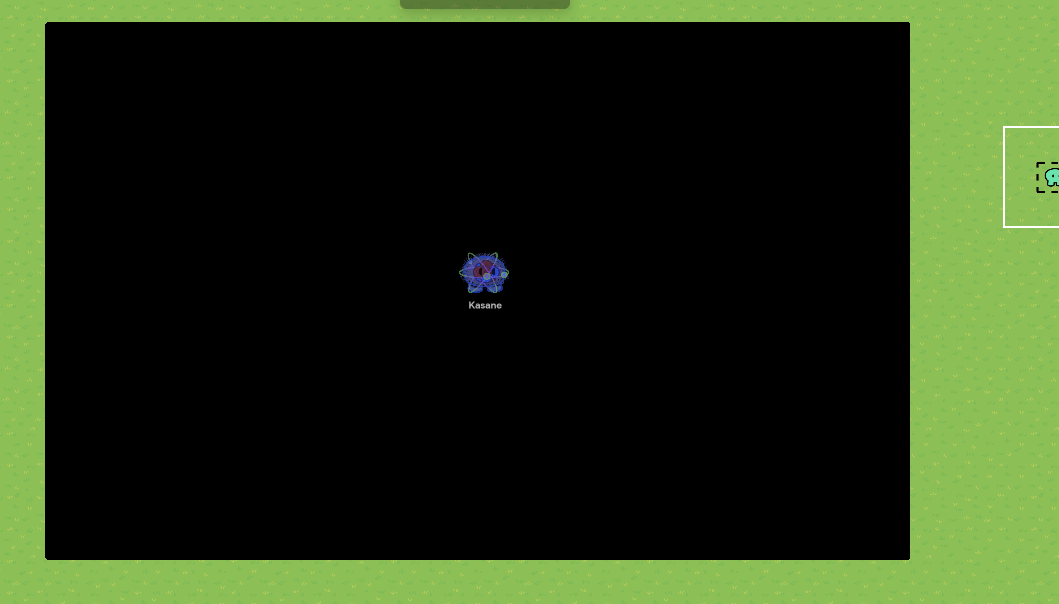
Finish Product
The cut-scene is running at 1fps is because the small amount of triggers i have. If you want to change the fps, change the trigger delay to less than 1 second (less delay = more trigger you need. Sometimes you might need more than 20 triggers) In this guide, i got too lazy, so i did not use a lot of trigger which cause the cut-scene running at 1 fps (Sorry for the quality and the cut-offs i have to compress the gif due the the limit being 2mb ( 🔎 ) How to make a gif on your school device for forums (Updated & Restored) helped a lot check it out)
Outro
I know this guide might be somewhat complicated due to im not a very fluent english speaker and I’m not the best at designing stuff. So please tell me if I’ve done anything extra and if I made any mistakes on my grammar, etc. Well, with that outa the way, I hope this helps, and have a good day <3
No most (all actually) of the guides are out-dated and has no pictures so I just made one with my own method actually im going to credit some people because i took some inspiration
Adding on to that, it literally says ‘The Techn0 Way’ in the title, that’s usually the biggest sign that a guide is ‘remixed’ off of another one, but is still truly original because it’s their way
Great guide Techn0!
Can’t do the rating thing 'cause I’m busy but, I’ll do it later!
1 little tip I can give you just by skimming through is, you know the “Making the Cut-scene” part?
How about you do like, drop-downs in a drop down?
for example:
Regulars are the backbone of your community, the most active readers and reliable contributors over a period of months, even years. Because they’re always around, they can be further trusted to help tidy up and organize the community.
To get to trust level 3, in the last 100 days…
Must have visited at least 50% of days
Must have replied to at least 10 different non-PM topics
Of topics created in the last 100 days, must have viewed 25% (capped at 500)
Of posts created in the last 100 days, must have read 25% (capped at 20k)
Must have received 20 likes, and given 30 likes.*
Must not have received more than 5 spam or offensive flags (with unique posts and unique users for each, confirmed by a moderator)
Must not have been suspended or silenced in the last 6 months
These likes must be across a minimum number of different users (1/5 the number), across a minimum number of different days (1/4 the number). Likes cannot be from PMs.
All of the above criteria must be true to achieve trust level 3. Furthermore, unlike other trust levels, you can lose trust level 3 status. If you dip below these requirements in the last 100 days, you will be demoted back to Member. However, in order to avoid constant promotion/demotion situations, there is a 2-week grace period immediately after gaining Trust Level 3 during which you will not be demoted.
NagiSeishiro is just really active and you aren’t (no offense or anything =D)
I feel like the steps are ok to follow, but it is lacking a bit of explanation, somebody that needs the guide likely don’t know why they need to make different scenes for a cutscene, and “the barrier throws at the other barrier” confused me until i saw the product
But overall, great guide!
i have an idea that might work add a sentry (with no players nearbye) with a camera angle and add a counter where every sec make the sentry dissapear and a new one appear like frame by frame
As @Boss_1s and @Techn0blade, the other guides are outdated and have no pictures whatsoever so this is not a dupe.
Besides, Techn0 took inspiration from a guide and credited it!


 Super Easy
 Easy
Easy Medium
 Hard (Dont vote this for fun)
 Super Hard (Dont vote this for fun)
 Gimpossible (Dont vote this for fun)