Hello!
I’m hosting a gimkit club, and we’re making a hall of minigames. I want the users to rotate between each room in five minute intervals, then let the users go to the room(s) they like best and play in them for the remaining time. Any way to do this?
1 Like
You can’t force them to move rooms, tough there could be an auto checkpoint then force-respawn system…
Idk yet, this is a definitive answer, also sry for the jargon, but if you get what I mean then yeah go for it
Ahem kormo you here?
3 Likes
you could use a counter and a wire repeater loop
when the counter reaches 5 minutes (wire repeaters should have a delay of 0.5 secs to activate the counter every 1 sec) it switches everybodys teams
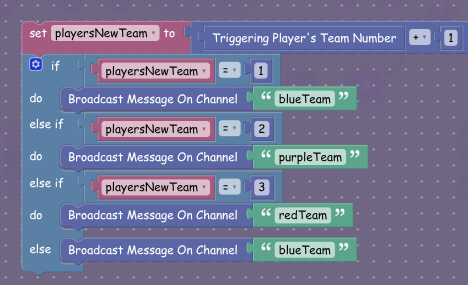
i used blocks for the trigger that sends the channels for switching
[1]
if the player is in the red room (team 3) then they’ll be set to team 4 (which doesnt exist)
so the player just gets set to team 1 looping around
since switching teams also respawns the player
i used spawn pads for different teams so the player should end up in the correct area
heres what it looks like
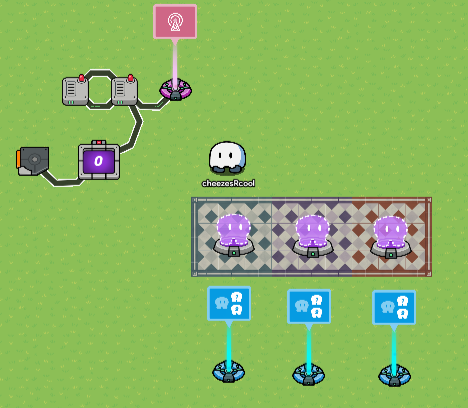
if you need help with anything like the wiring or the properties then i can add in screenshots of those settings too
or you can look for another answer (sometime in the near future somebody will probably find a more optimized method for making this)
oh wait i havent added counter number two yet
its actually really simple
make it deactivate the trigger that switches teams when it reaches whatever number you want it to be (the number of minigames)
if you want it to also respawn you at, say, the beginning of the hallway
then you can switch the players teams to any team that isnt assigned to a minigame (spectator doesnt work) and put a spawn pad for that team
also, you can save memory by removing all of the wires (expect for the wire repeater wires those cant be removed) and replacing them with channels
if you choose to do that however
be careful and make sure you use the right channels- otherwise it might not work
‘blueTeam’ activates the team switcher for the blue room, ‘purpleTeam’ activates the team switcher for the purple room and you can probably guess what ‘redTeam’ does ↩︎
4 Likes
You could integrate an invisible counter and teleporters so when the counter runs out it transmits on a channel that activates a teleporter, teleporting you to the next room. Then when teleported to the next room deactivate the first counter and activate another one.
I’m pretty sure this will work but not 100% certain so…
2 Likes
Love this idea! I will try to accomplish this (: I am not really bright in this area and I mostly depend on my secretary for this. She’s in hawaii. any simpler ways to do this?
3 Likes
i can brainstorm for a moment and edit this message later with other methods
honestly i cant figure out a simpler way to do this
either i can make a more detailed guide (going through what everything should be configured to) or somebody else figures it out
note: use AlexC’s method if you’ll be putting everybody in the same minigames instead of splitting them up
guide 2.0

heres the setup fully completed (you can use this as reference for the actual thing)
but ignore the wire from the counter to the trigger
since thats replaced with channels in the guide
Section 1 - The Counter
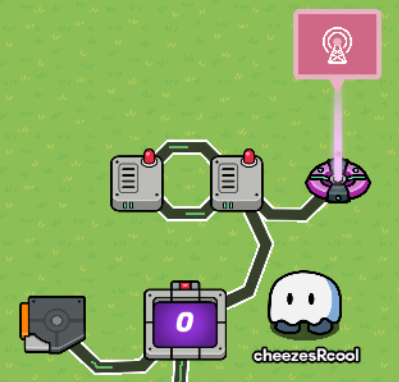
first, put in a life cycle
^ this will be used to start up the wire repeater loop
make this life cycle listen for ‘Game Start’
Event
Event the device listens for
[ Game Start ]
and put in two wire repeaters, preferably close to each other as these will be linked together (like this vvv)
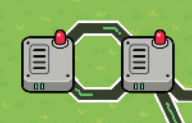
now, link these together!
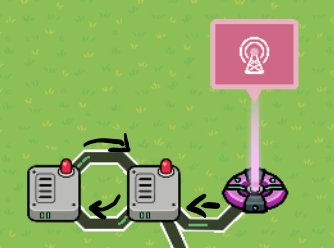
this ^
is what direction the wires should be heading
for the life cycle to the wire repeater, you shouldn’t have much trouble but just incase;
you’ll want to set it to
Event occurs -> Repeat the wire pulse!
with the wire repeaters, you wont have to click anything!
they’ll all be
Repeat the wire pulse! -> Repeat the wire pulse!
the wire repeater loop is almost done!
set the wire repeater delay to 0.5 seconds and you’ve just about finished it ( almosttttt (you still have to connect it to the counter) )
Delay
When a pulse is received, how long (in seconds) to wait before relaying it
[ 0.5 ]
now, here comes a part that requires a bit more work - the counter!
put down a counter
and heres what its settings should be;
Starting Value
The value the counter starts at
[ 0 ]
Count Scope
When the count is updated, it applies to who?
[ Global ]
Reset Counter when receiving on
Reset the counter to the starting value when the device receives a signal from the selected channel
[ SwitchRooms! ]
^ this channel can actually be anything, but for the purposes of this guide, it’ll be ‘SwitchRooms!’ so its easily recognizable
Use Target Value
Have a target number for the counter to reach
[ Yes ]
Target Value
The target number the counter is working towards
[ 300 ]When target reached, transmit on
When the target value is reached, the device sends a signal on the selected channel
[ SwitchRooms! ]
^ if you aren’t using ‘SwitchRooms!’ for Reset Counter when receiving on, then change the channel used here to whatever channel youre using for that
and now, connect the wire repeater loop to the counter and you’ll be done with this segment of the guide!
Section 2 - The Trigger and its Blocks

this part may be a little bit tricky
the settings themselves arent too difficult though
Trigger when receiving on
Trigger this trigger when the device receives a signal from the selected channel
[ SwitchRooms! [2] ]
the real tricky part is the blocks
select the trigger and find this button

it should be located on the upper left part of the screen
and now create a new block (theres only one option here so you shouldnt have much trouble)
heres the code if you just want to copy it
though you should read the text below too

[3]
you will need to expand it by whatever number it needs to be (the amount of minigames +1 for the overflow)
for example, if you have 3 minigames then you edit the if block to be;
If [condition] (minigame 1)
Else If [condition] (minigame 2)
Else If [condition] (minigame 3)
Else [condition] (loops back)
you can do this by clicking the little blue cog on the corner of editable blocks

make sure that the channels names make sense since you’ll be using them later
just make sure you can differentiate them!
(if the channel browser pops up, dont worry and ignore the (presumably) mostly empty ui, you can use text to create new channels)

heres how you connect the blocks to broadcast your new channel! vvv

also, make sure that top to bottom, all of the channels are ordered so that if you went to those minigames there would be a visible pattern, or else it might get really confusing really fast
great, hopefully your block code is looking good and will not cause any problems in the future!
(if youre confused theres a lot of guides on block code in the forums, if those dont help too then just ask!)
Section 3 - The Team Switchers and Spawn Pads
this is where the channel names you chose for the last section matter the most, since its the only part where they matter

you probably have more than 3 minigames, but for the purpose of this guide theres only 3 rooms
so this part is really easy as long as you can identify what minigames your new channels were for
put down one team switcher and one spawn pad for each minigame
we’ll be doing the team switcher first, since what you choose for it changes what you would put in the spawn pad
heres the settings
Switch Strategy
How to choose which team to switch to
[ Specific Team ]
Team
The team the player will switch to
[ Team # ]
make sure that this team is the number in what part of the ‘if’ statement it appears in
what do i mean by that?
if you look at my block code, you’ll see that the blue room is the first to appear (going top to bottom), the purple room is the second to appear, and the red room last to appear in the block code
the blue room actually is also last, but since its the first it can be any team
if you choose 1, 5, 3, 14 for blue team, it wont matter, just make sure that you dont go above 60 if you add on the rest of the minigames onto that number
but for the team for the second room and on do very much matter
make sure that the teams increment by one!
heres an example of teams done correctly;
first room; team 1
second room; team 2
third room; team 3
if they do not rise by increments of one (or any other number but then you’d have to edit that block code), then the team switching will probably get stuck on one room
Switch to configured team when receiving on
Switch to configured team when the device receives a signal from the selected channel
[ placeholder ]
heres the part you may or may not be waiting for; the moment where you actually use the channels you made in the block code!
just replace placeholder with the right channel (this is why it was important to be able to differentiate all of the channels; it would be very annoying if you had to go back and forth from the block code to the team switcher 4 times)
when you click that box, this dropdown should appear
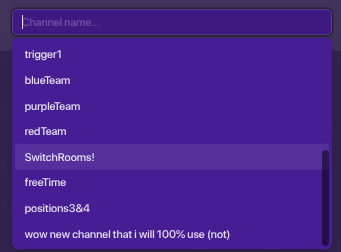
you can put text in the box as a sort of search bar before clicking the channel you want
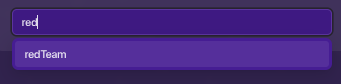
and now that you’ve hopefully done that right, its time to move on to the spawn pad!
theres only one setting you’ll have to change;
Allowed Team
Which team can spawn at this spawn pad?
[ placeholder ]
^ put in the team that belongs to the minigame its in
now, just in case you havent done this already, you’ll want to put the spawn pads in where you want the players to start in the minigame!
Section 4 - Ending the Rotations
/// not finished!!! placeholderTxt ///
ignore the trigger i dont know why i put that in the screenshot that’ll be the next section ↩︎
(i’ll be referring to this channel as ‘SwitchRooms!’ only from now on so once again, if you used any other term, remember to use that term instead of this one (this will also apply for the rest of the channels) ) ↩︎
tip for finding the blocks - the colors of the blocks correspond to what category theyre in ↩︎
3 Likes
honestly…
i think the way with the counters and the teleporters is the easiest way. You could try connecting them with wires tho if the channels are too confusing.
some things in Gimkit are just kinda confuzling
Yeah, that would be great.
Wire Repeaters have a max delay of 60 seconds (1 minute), so for a system:
Wire 5 Wire Repeaters together, all with a 60 second delay, and connected to the last Wire Repeater is a Teleporter to the room. (Repeat this for as many rooms as you have: 60 sec. --wire–> 60 sec. --wire–> 60 sec. --wire–> 60 sec. --wire–> 60 sec. --wire–> Teleporter and 60 sec. -->). Wire something to trigger the very 1st Wire Repeater, like a game start Lifecycle device.
2nd system: Wire 5 Wire Repeaters together in a loop, all on a 60 second delay. Connected to the last Wire Repeater is a Trigger with a block code that sends a signal to a random channel. Each channel sends a signal to a different Teleporter, with each Teleporter how you are sent to each room. (This system requires less Wire Repeaters and wires, but could send you to the same room multiple times, so that’s the only issue with this system.)
Edit: Corrected the names of the devices I mentioned in this post. Also here are the pictures. (These pictures show the 2nd system):
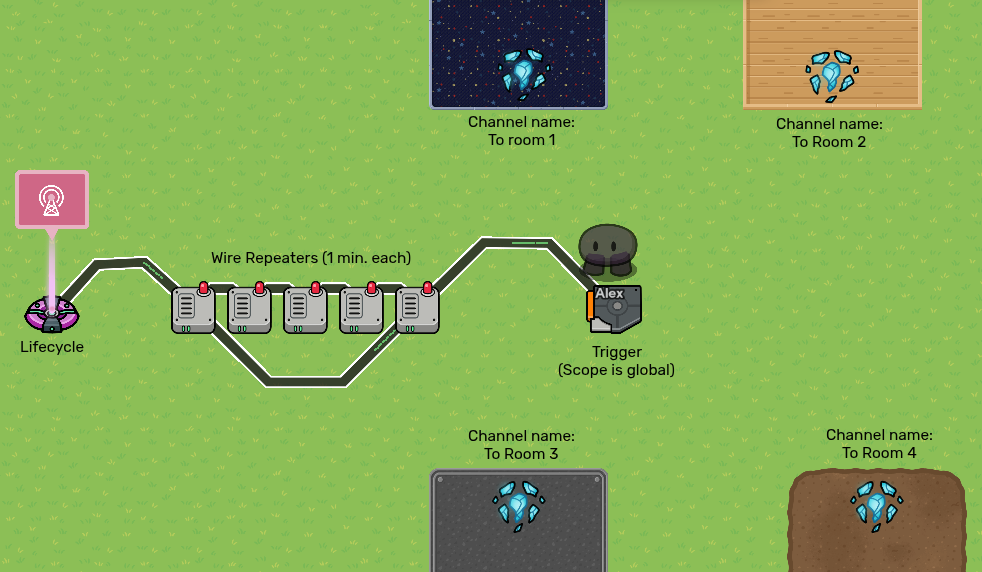

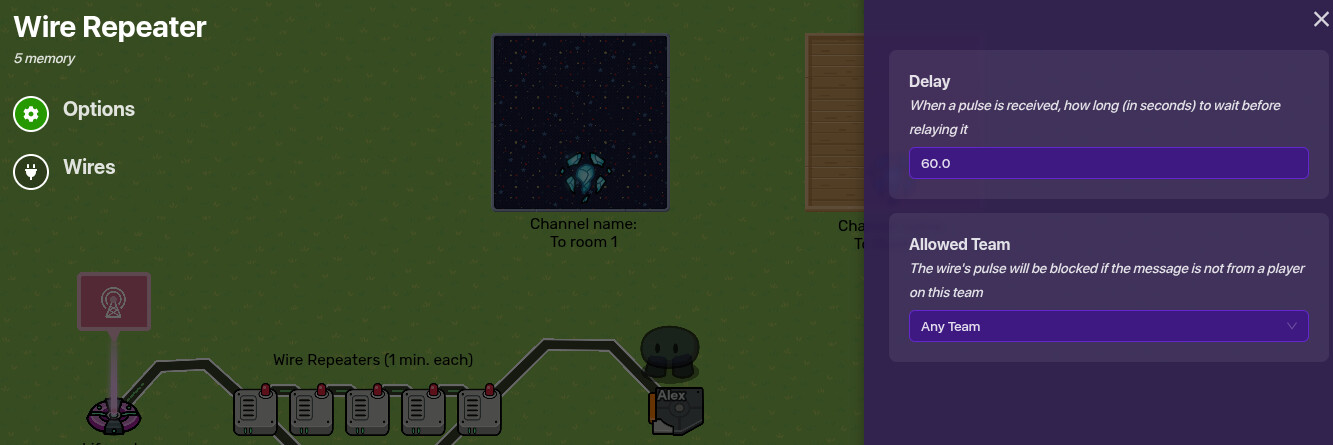
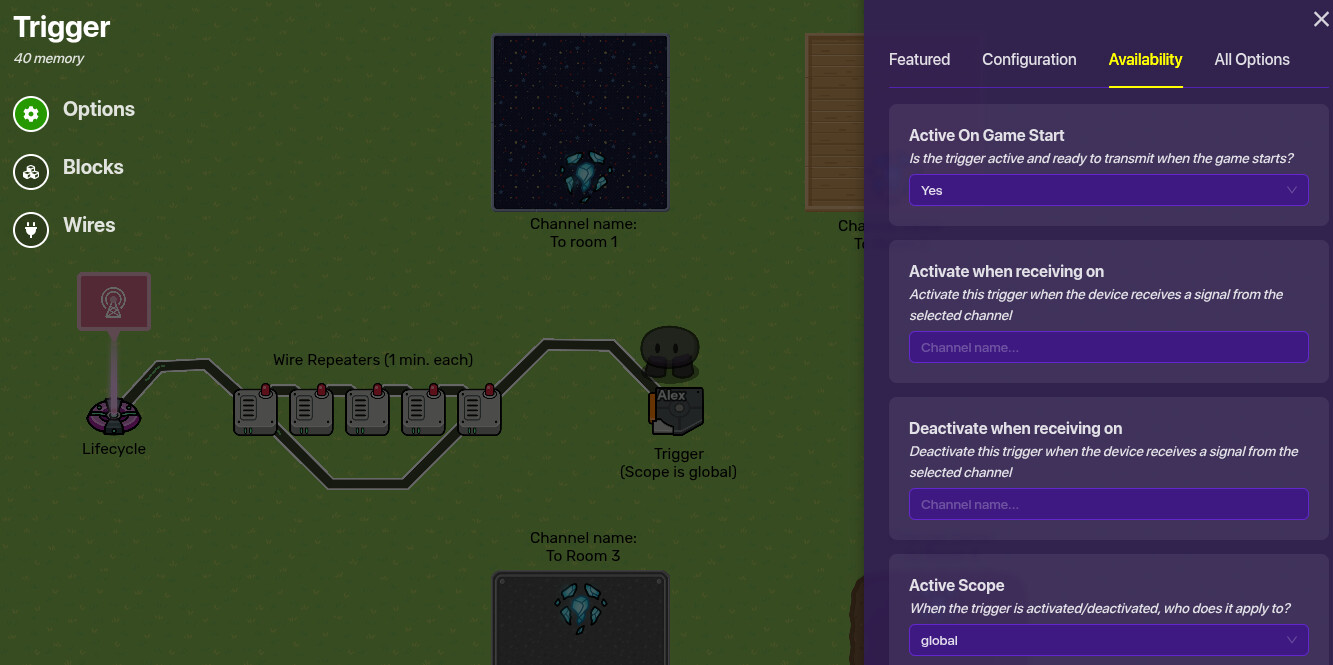
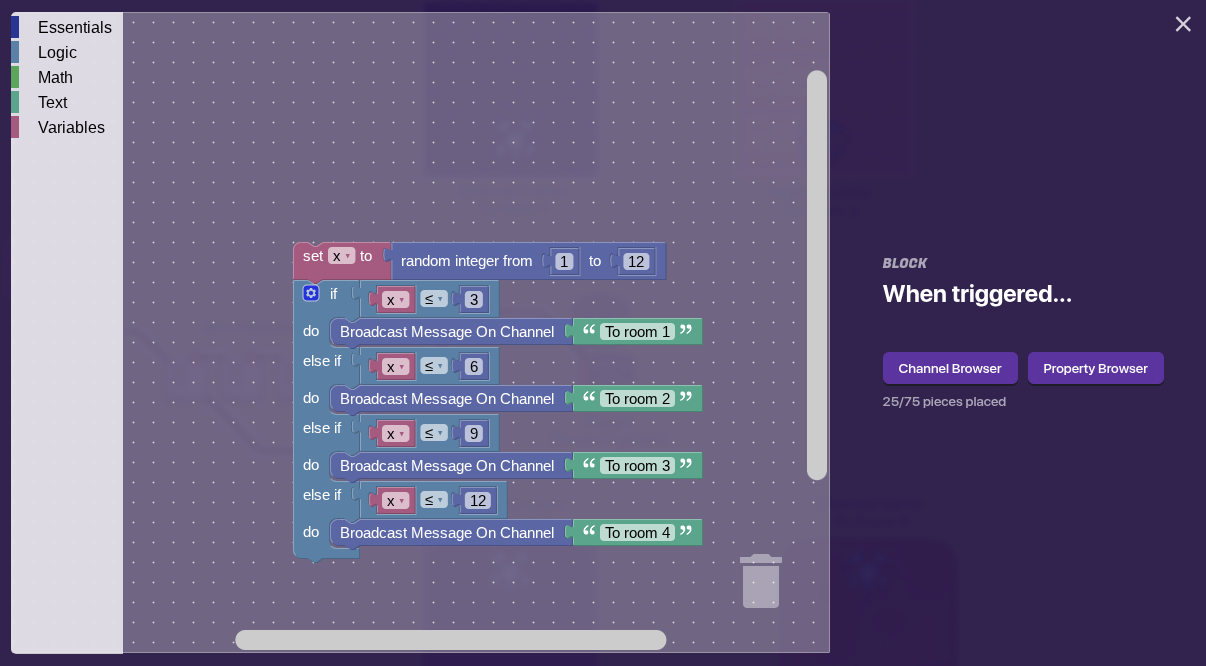
The random number is 1-12 instead of 1-4 so the are more possible numbers to land on, so in theory it will lower the chances of it being the same channel multiple times. And you probably more than 4 rooms, so just adjust this to fit the number of rooms you have.

Sorry for so many pictures :c , but this is the minimum amount to show what I said at the top.
2 Likes
@AlexC maybe add some picturrrrrrrez…
pls…
1 Like
I actually thought of that right before you posted that post. I’ll add some tomorrow.
1 Like
also, this is def a simpler method
use that if your goal is to have everybody in the same minigame
(im assuming that everybody will be spilt up (aka why i have to figure out what team the players are in) while AlexC seems to be assuming that everybody will be in the same minigame (aka why nothing in his requires checking where the players are) )
if you can code then thats prob why?
1 Like
Why do I need to be here
I can somewhat but not really blocks - more JavaScript & HTML
5 Likes
I’ve edited my post and added pictures.
Edit: Tomorrow I’ll add a way to prevent teleporting to the same room twice.
1 Like
Phase 1: Automatic Rotation (5-Minute Intervals)
This system works by changing every player’s team after a set time, which (hopefully) automatically respawns them at their team’s spawn point (teleporter).
Devices Needed Per Minigame Room
1x Lifecycle:Set to run when the game starts to begin the timer for the first room.
1x Repeater: Set to a 1.0-second interval to act as the clock pulse.
1x Counter: Set its target to “0” and starting value to “300” (for 300 seconds, or 5 minutes).
1x Teleporter: Placed in each room for that specific team’s spawn location.
Setup Instructions
- Map Layout and Teams:
Create your minigame rooms.
Go to your game’s Settings and create one team for each minigame room ( Team 1 for Room A, Team 2 for Room B, etc.)
Place a Teleporter in each room and set its “Target Teleporter” to a unique group, and ensure the “Teleport Player Here When Receiving On” channel is blank. The teleporter is used as a spawn point when the team changes.
Assign each player to Team 1 at the start of the game like the game settings or a starting device. - Timer Logic (using Channels):
Place a Lifecycle and configure it to transmit on a channel “StartTimer”) when the event (game start) occurs.
Place a Repeater and set its “Task Interval” to 1.0 second. Set “Stop Strategy” to “Do not stop”. Make it start repeating when receiving on “StartTimer”.
Place a Counter. Set its “Starting Value” to “300” and “Target Value” to “0”.
Wire the Repeater to the Counter (Repeater runs task → Decrement counter). - Team Switching Logic (using Channels):
Place a Team Switcher device for each room/team. Name the channels for each one ( “SwitchToRoom2” for the Team 2 switcher).
Place a Trigger (invisible in game, no player collision) for each team change. The first trigger should receive on “SwitchToRoom2” and transmit on “SwitchToRoom3”, and so on in a loop back to the first room.
Wire the main Counter to the first Team Switcher (Target Value Reached → Switch Player’s Team).
You will need to use a complex system of Channels or Block Code with the counter/repeater loop to cycle through the different team switchers after each 5-minute interval. A simpler way for a beginner is to use a new counter/repeater system for each room’s timer.
Phase 2: Favorite Room Selection
To allow players to choose their own rooms for the remaining time, you must stop the automatic rotation and give players a manual choice mechanism.
- Stop the Rotation:
At the desired time ( after every player has visited every room once), trigger a channel ( “EndRotation”) that deactivates all the Repeaters and Lifecycles used in the rotation system. - Manual Room Choice:
In a central “hub” area, place Buttons or Zone corresponding to each minigame room.
Place a Teleporter near each button.
Wire each Button/Zone to its corresponding Teleporter (Button Pressed → Teleport Player Here).
Players can now manually select which minigame they want to play in for the rest of the game.
4 Likes
Okay! thanks a lot guys. SuffyPro97 has the simpilest way to me. I’ll show my secretary it when she comes back 
3 Likes
Wait. I have at least 27 people attending. I don’t think the server can handle it.
if youre worried about the performance of your code, you can test the system yourself and see how it fares with multiple people!
you can go to your game, copy the game cde, and repeatedly jo1n your game until you have around 30 ‘different’ people all ‘playing’
then start the game and see what happens
and anyways, if the problem youre thinking of is server overload (or whatever its called)
gimkit should be completely fine (what would it be used for if it couldnt support a single class of students? its supposed to be an alternative to games like kahoot and blooket (maybe) )
Okay. Let’s hope it works! I’ll reopen the thread if it doesn’t.
1 Like
This topic was automatically closed 3 hours after the last reply. New replies are no longer allowed.