Welcome to the Simply Saturation guide!
Ever wanted to make your survival/sandbox game stand apart from the rest? This simple guide will show you how to create a hunger system similar to the one in Minecraft, utilizing saturation.
By the end of this guide, you should have successfully created a system that can:
- Inventory for sorting through foods.
- Edible foods.
- Drain energy over time, but not immediately after eating.
Visit the “Make it your own” section of this guide for some ideas on how you could expand upon this system!
Finished product
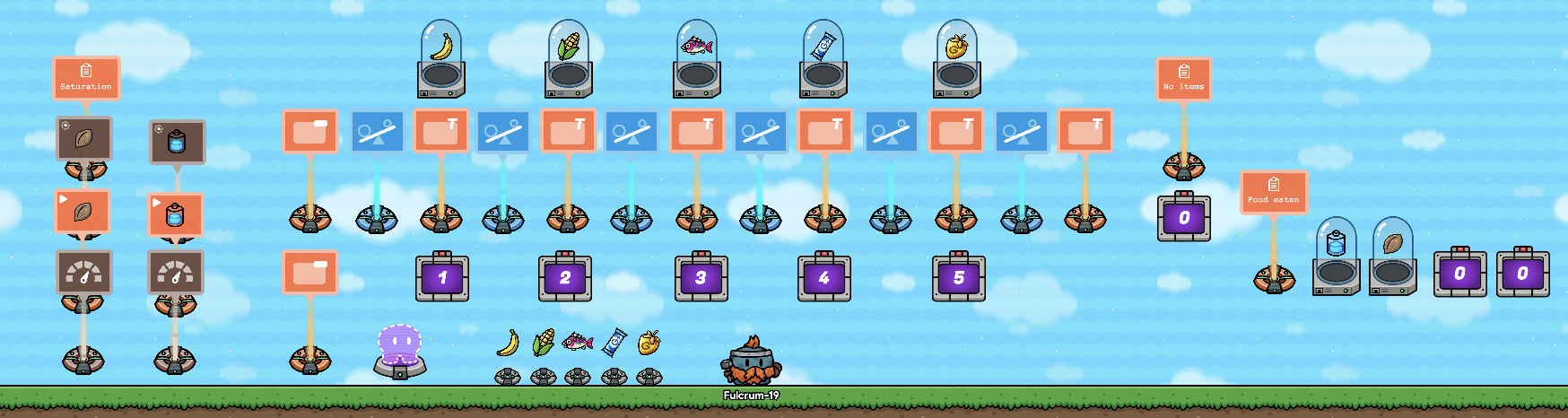
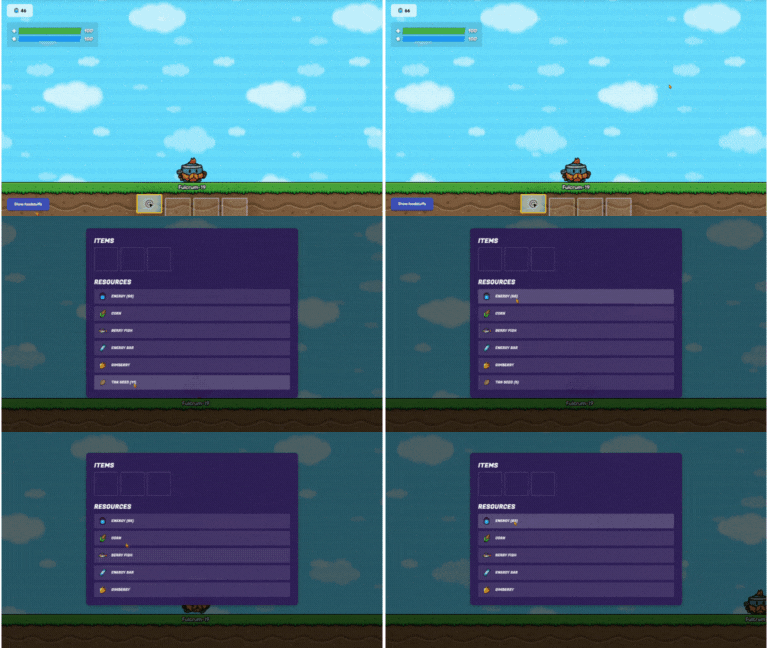
I apologize for the poor quality of the GIF. I had to ensure that it would be under the 2 MB upload limit.
In the GIF, you can see that I open a “Popup” with a “Game Overlay” button. In the “Popup”, you can see two buttons. One says “Eat,” which prompts you to eat the item shown, and the other says “Next,” directing you to move to the next food item.
After eating the banana, I open the inventory, where I can see my energy is not decreasing, but another item is. When I run out of that item, my energy starts to decline. The item that decreases before the energy is the saturation, which is what Minecraft uses to ensure your hunger doesn’t immediately start going down again.
Materials
This list is sorted first by the greatest number of devices to the least, then by how much memory they use.
“Counter” ×8 (200 memory) [1]
“Item Granter” ×7 (1,245 memory) [2]
“Popup” ×6 (300 memory) [3]
“Checker” ×6 (210 memory) [4]
Items ×5 [5]
“Property” ×3 (30 memory)
“Inventory Item Manager” ×2 (430 memory)
“Game Overlay” ×1 (175 memory)
“Movement Meter” ×2 (200 memory)
“Starting Inventory” ×2 (20 memory)
Total memory: 2,850
Let’s get going!
Setting up Movement Meters
Setting up Movement Meters
First, pick the item you will use for your saturation and hunger. I used tan seeds and energy. We’ll set up the saturation first.
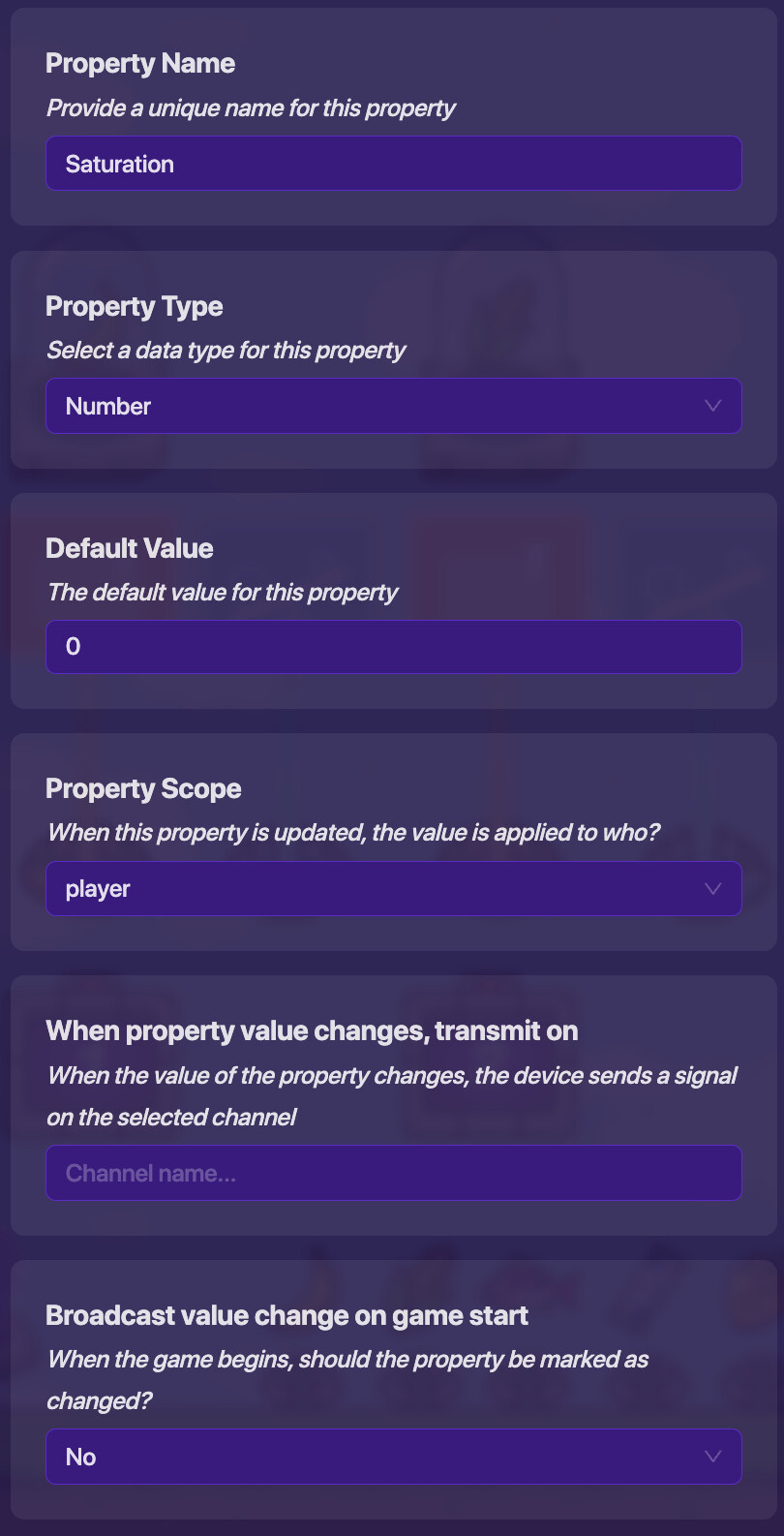
We’ll need a “Property” device to track the saturation. Add one like so:
Property Name:
Saturation
Property Type:Number
Default Value:0
Property Scope:player
When property value changes, transmit on:
Broadcast value change on game start:No
Get an “Inventory Item Manager” device and set it up like this:
Item:
Tan Seed←Replace with your preferred item.
Use By Default:Yes
Activate when receiving on:
Set Maximum Amount:Yes
Maximum Amount:100←This can be changed to whatever you want your maximum saturation to be.
Override Respawn Behavior:No
Show Item Alerts:No
Item amount changes when receiving on:
Clear item from inventory when receiving on:
Update Property:Yes
Property To Update:Saturation
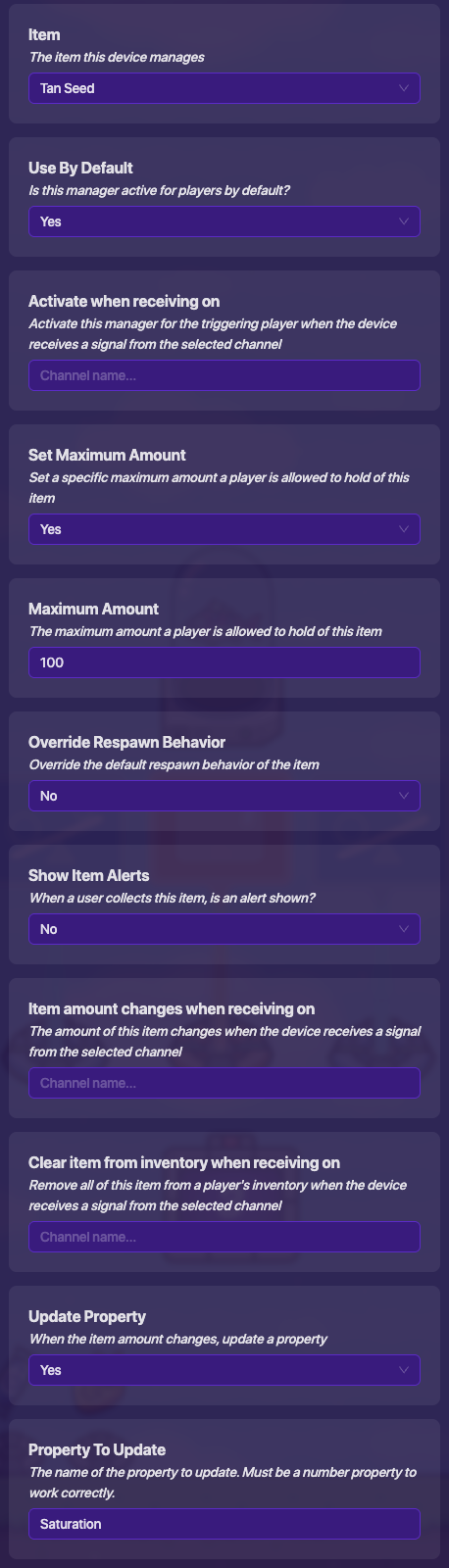
The reason we have this is to remove notifications when we receive the item, and to ensure that we don’t go past the maximum value.
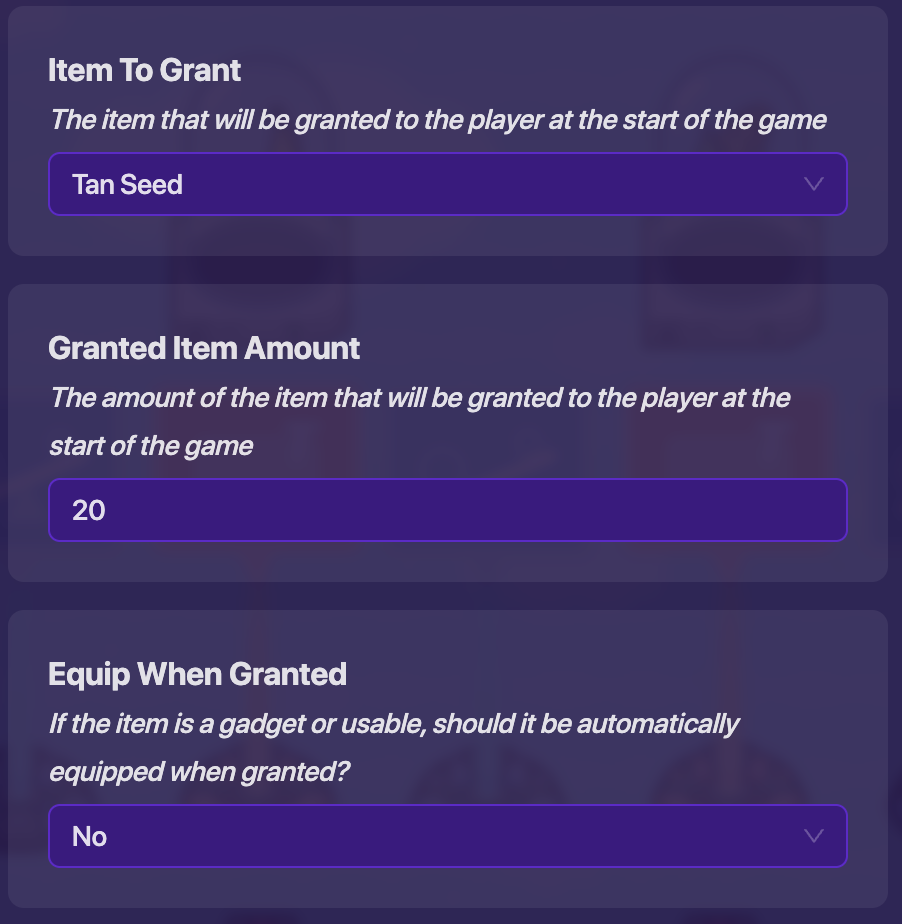
Get a “Starting Inventory” with these settings:
Item To Grant:Tan Seed←Replace with your preferred item.
Granted Item Amount:20←This can be changed to whatever you want your starting saturation to be.
Equip When Granted:No
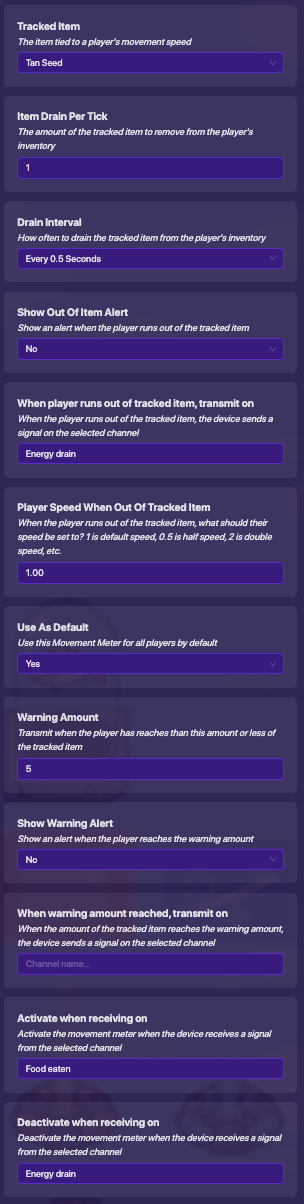
Now we can set up a “Movement Meter” to gradually decrease our saturation. Set one up like so:
Tracked Item:
Tan Seed←Replace with your preferred item.
Item Drain Per Tick:1←This can be changed to whatever fits your game.
Drain Interval:Every 0.5 Seconds←This can be changed to whatever fits your game.
Show Out Of Item Alert:No
When player runs out of tracked item, transmit on:Energy drain
Player Speed When Out Of Tracked Item:1.00
Use As Default:Yes
Warning Amount:5
Show Warning Alert:No
When warning amount reached, transmit on:
Activate when receiving on:Food eaten
Deactivate when receiving on:Energy drain
Now that our saturation is set up, we can set up our hunger next. Copy everything we just placed EXCEPT the property.
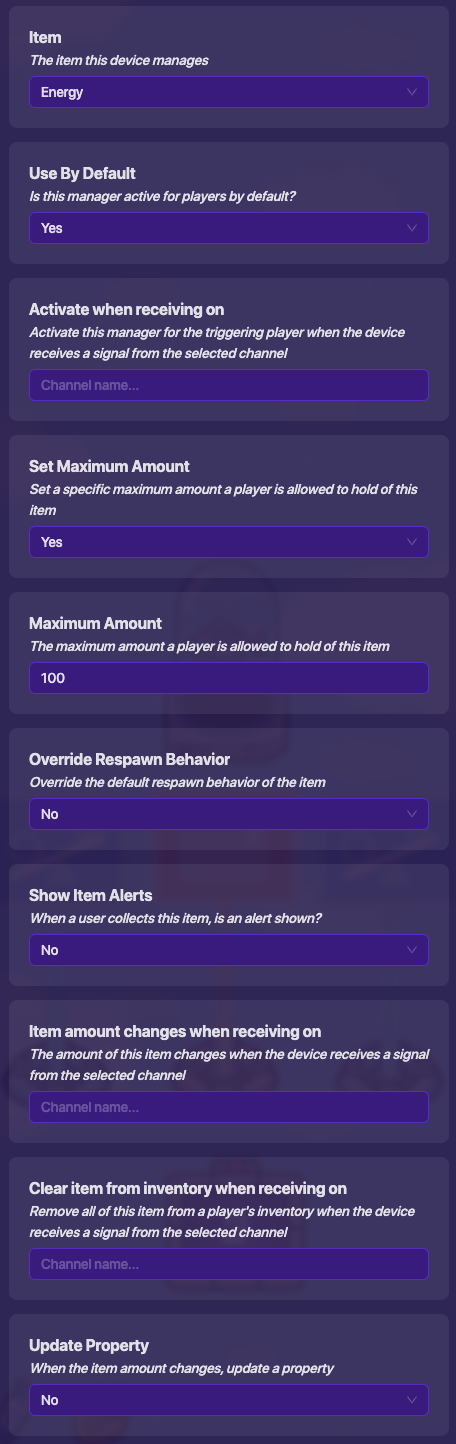
Set up the “Inventory Item Manager” for the hunger with your preferred item and settings:
Item:
Energy←Replace with your preferred item.
Use By Default:Yes
Activate when receiving on:
Set Maximum Amount:Yes
Maximum Amount:100←This can be changed to whatever you want your maximum hunger to be.
Override Respawn Behavior:No
Show Item Alerts:No
Item amount changes when receiving on:
Clear item from inventory when receiving on:
Update Property:Yes
Property To Update: ←Remove this unless you make a hunger property!
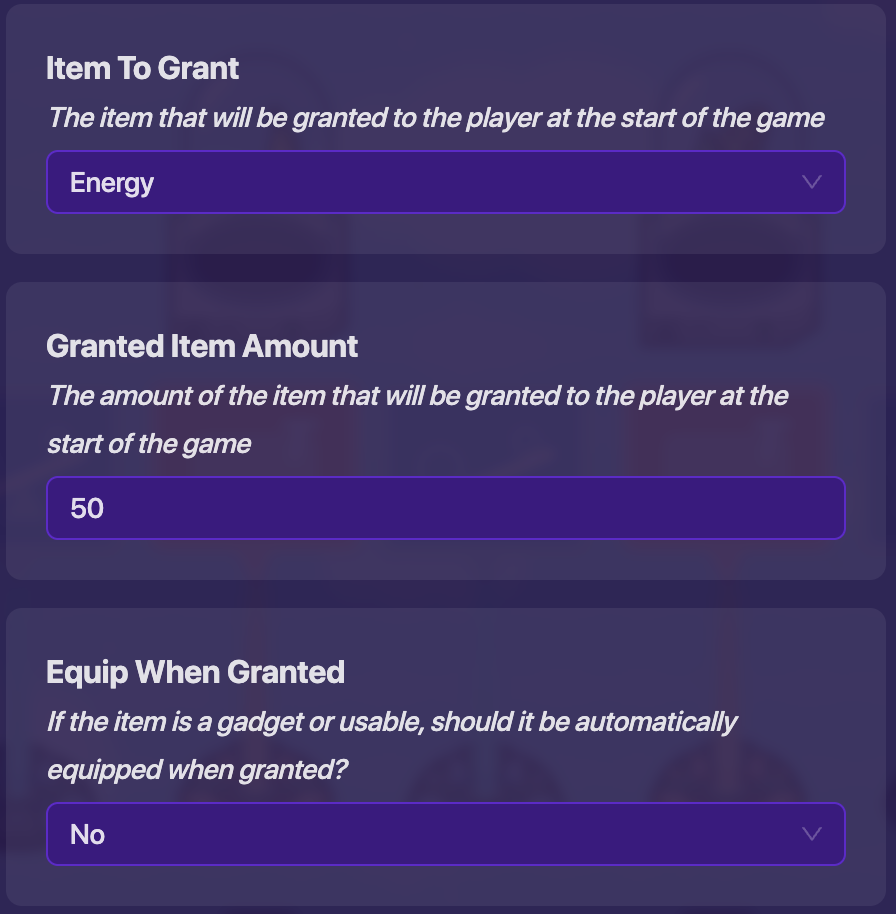
Change the “Starting Inventory” to your hunger item as well:
Item To Grant:
Energy←Replace with your preferred item.
Granted Item Amount:50←This can be changed to whatever you want your starting hunger to be.
Equip When Granted:No
Lastly, just change a few settings in the hunger “Movement Meter”:
Tracked Item:
Energy←Replace with your preferred item.
Item Drain Per Tick:1←This can be changed to whatever fits your game.
Drain Interval:Every 1 Second←This can be changed to whatever fits your game. [6]
Show Out Of Item Alert:No
When player runs out of tracked item, transmit on:Energy drain
Player Speed When Out Of Tracked Item:0.00←You may want to change this in the future.
Use As Default:Yes
Warning Amount:5
Show Warning Alert:No
When warning amount reached, transmit on:
Activate when receiving on:Food eaten
Deactivate when receiving on:Energy drain
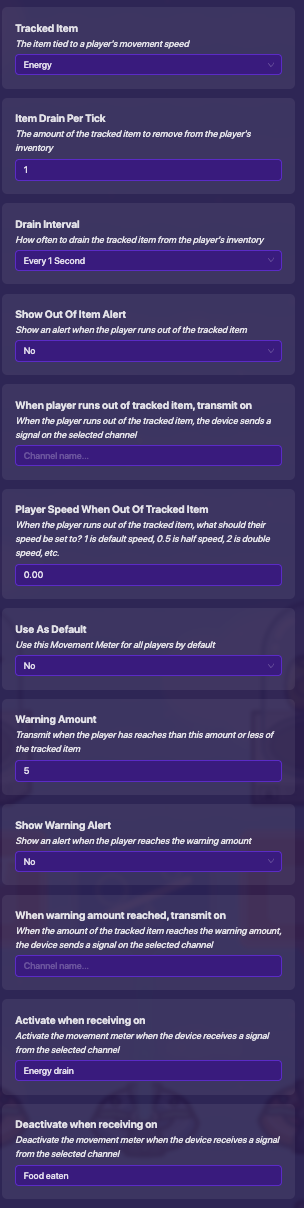
Check your work! Start the game and run around for a bit. You should see the saturation deplete over time, and once you run out, you should see the hunger start to deplete as well.
Now we’ll move on to creating an inventory for foods.
Food Inventory
This part will show you how to make an inventory where you can sort through your food and eat it!
This system utilizes a chain of “Popup” devices, but you could use a list version if you have the Season Ticket with a few more “Inventory Item Manager” and “Property” devices, and some Block Code.
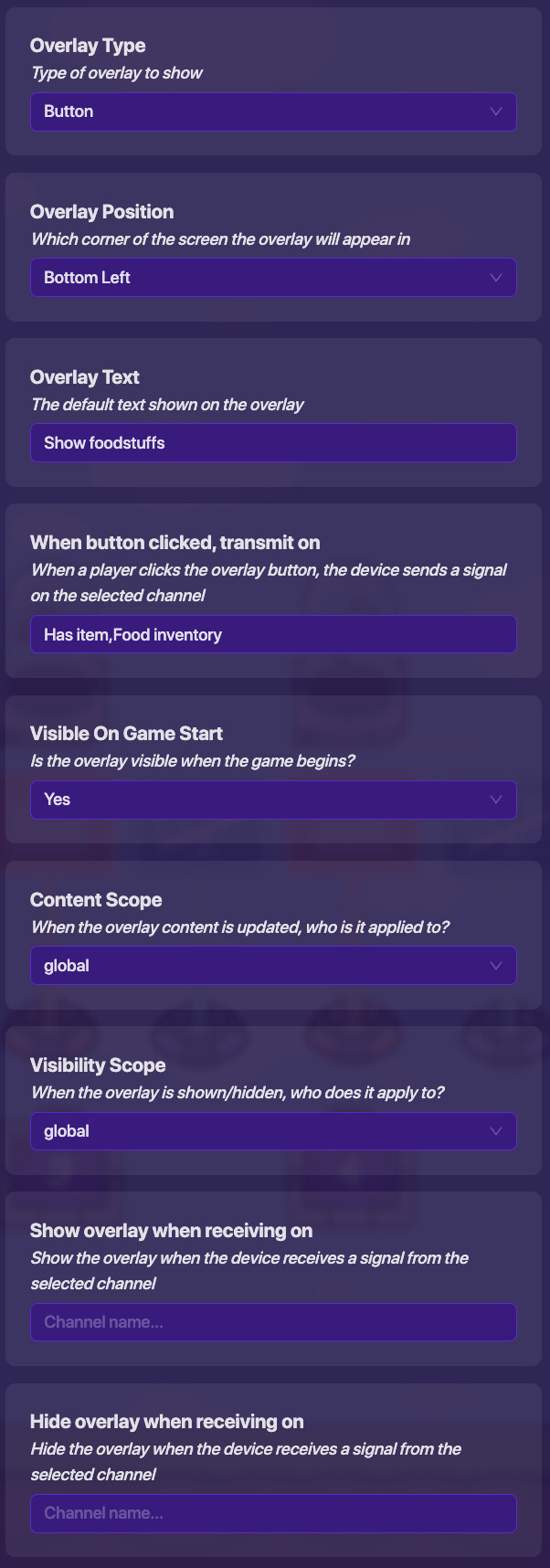
Let’s add the “Game Overlay” to open the inventory:
Overlay Type:
Button
Overlay Position:Bottom Left
Overlay Text:Show foodstuffs
When button clicked, transmit on:Has item,Food inventory
Visible On Game Start:Yes
Content Scopeglobal
Visibility Scope:global
Show overlay when receiving on:
Hide overlay when receiving on:
Now we’ll need to show the items in order. The items will only show if they are in our inventory. The first item I will show will be a banana. You can grant the item however you want, but I granted it using “Item Spawner” devices.
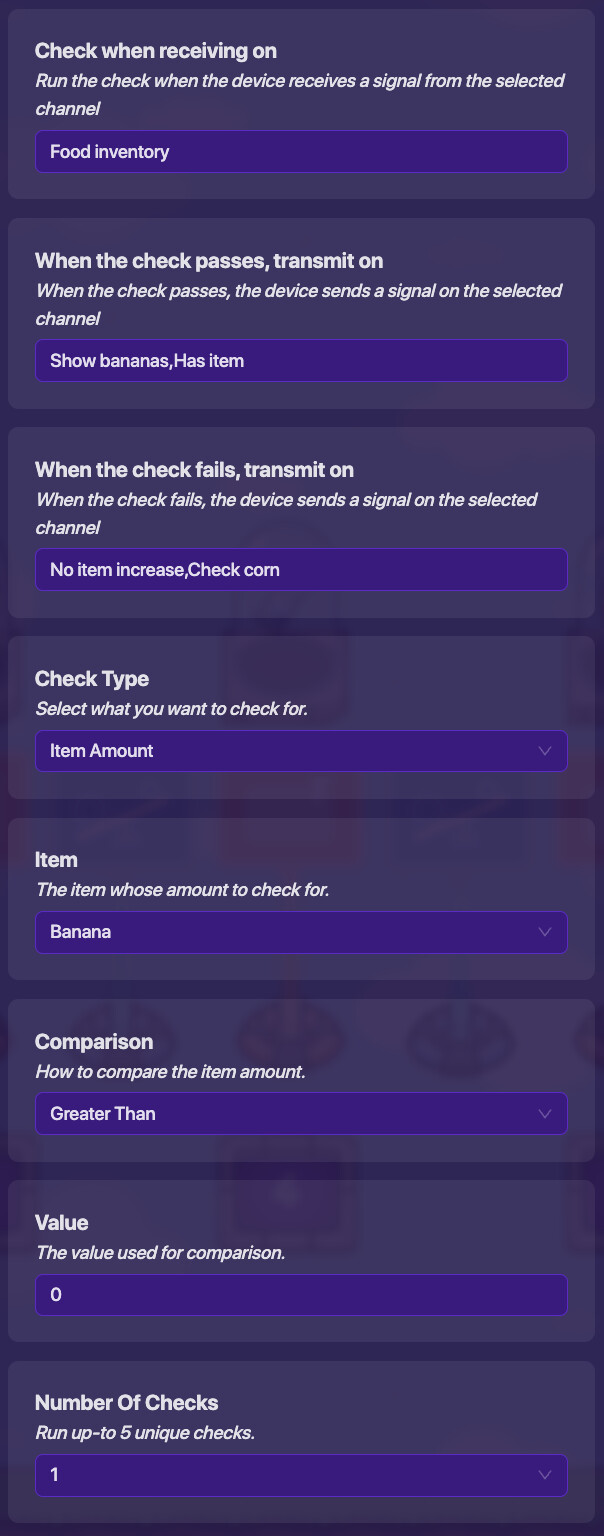
Get a checker and give it these settings:
Check when receiving on:
Food inventory
When check passes, transmit onShow bananas,Has item←Replace second word of first channel with your first food item.
When check fails, transmit onNo item increase,Check corn
Check Type:Item Amount
Item:Banana←Replace with your first food item.
Comparison:Greater Than
Value:0
Number Of Checks:1
Now we’ll use a “Popup” to show the banana.
Header Text:
Bananas
Content Text:Good for potassium
Open popup when receiving on:Show bananas
Icon Image:items/Banana
Popup Style:Modal
Call To Action Style:Standard
Call To Action Label:Eat
Call To Action Channel:Eat banana
Secondary Call To Action Label:Next
Secondary Call To Action Channel:Check corn
Content Scope:global
Background Color: R=255G=255B=255Hex=#FFFFFF
Font:Rubik
Close popup when receiving on:Reset food inventory
When popup closed, transmit on:

Change any channels with the name of the food and any visual elements as appropriate.
Now you will continue the chain of “Checker” and “Popup” devices, and have one for each food.
For each food, there should be a “Checker” that checks when receiving on Check (food), if the check passes, transmit on Show (food),Has item, and if the check fails, transmit on No item increase,Check (next food) (Unless it is the last food, in which case it should transmit on No item increase,Check items).
There should also be a “Popup” for each food. It should show when receiving on Show (food), when the “Call To Action” is pressed, transmit on Eat (food), when the “Secondary Call To Action” is pressed, transmit on Check (next food) (Unless it is the last food, in which case it should transmit on Check items)
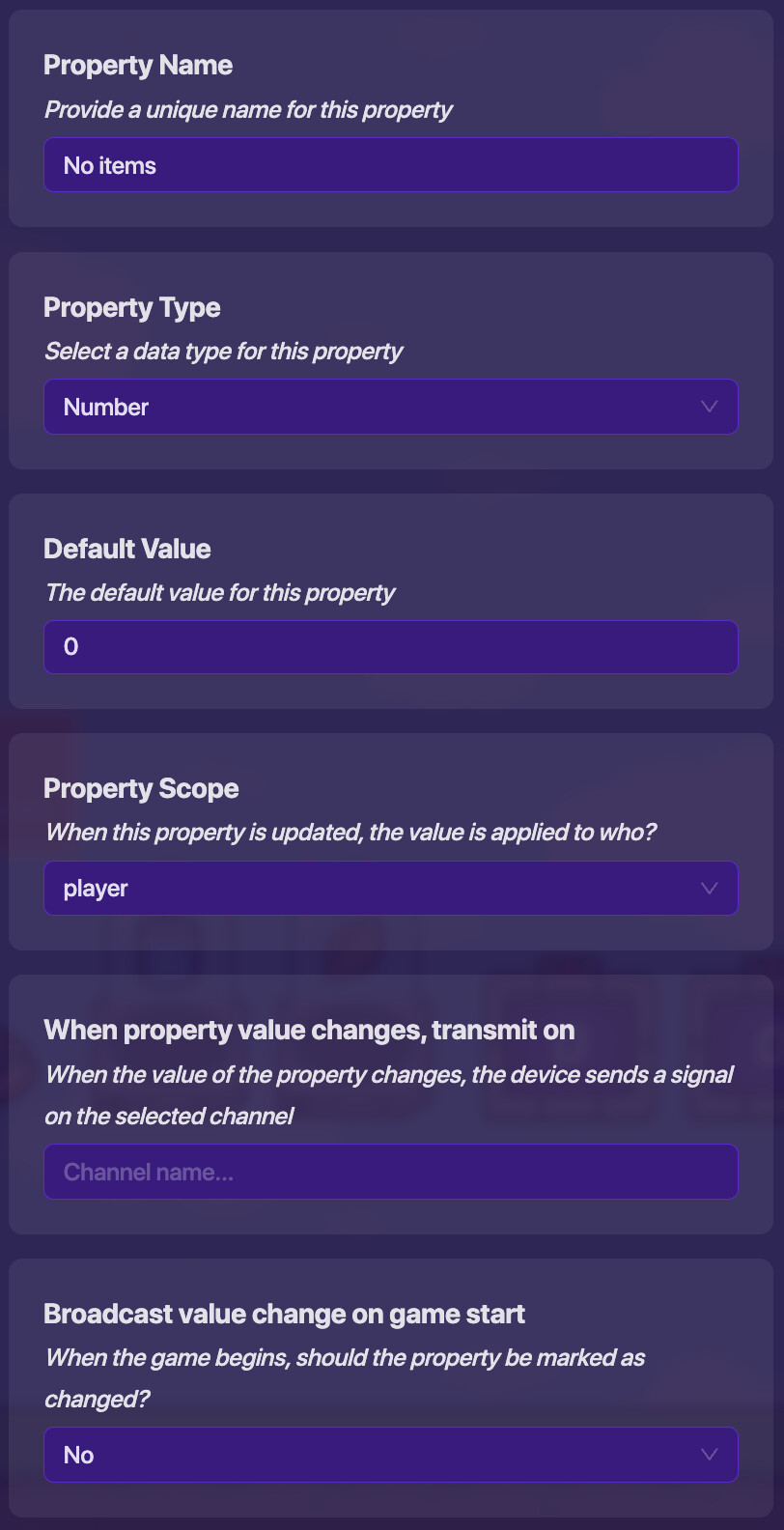
Now you will need a “Property” with these settings:
Property Name:
No items
Property Type:Number
Default Value:0
Property Scope:player
When property value changes, transmit on:
Broadcast value change on game start:No
Now get a “Counter” device:
Starting Value:
0
Increment counter when receiving on:No item increase
Decrement counter when receiving on:
Visible In-Game:No
Count Scope:player
Reset counter when receiving on:Has item
Update Property:Yes
Property To Update:No items
Use Target Value:No
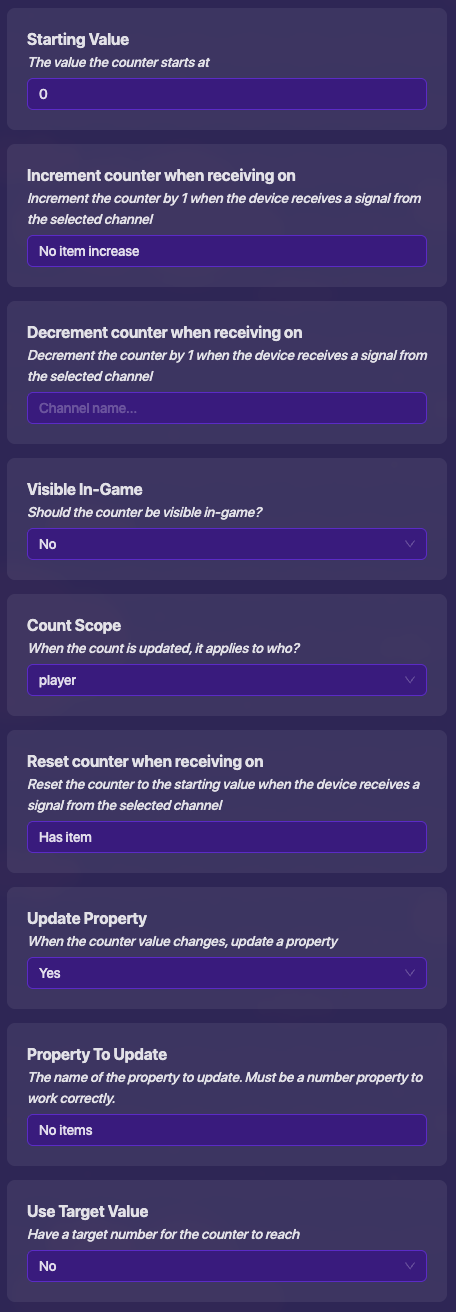
Now you will need one more “Checker” and “Popup”.
Set the checker up like so:
Check when receiving on:
Check items
When check passes, transmit on:No items
When check fails, transmit on:Food inventory,Has item
Check Type:Value Of Property
Property:No items
Comparison:Equal To
Value:5←Change this number to however many items you have.
Number Of Checks:1
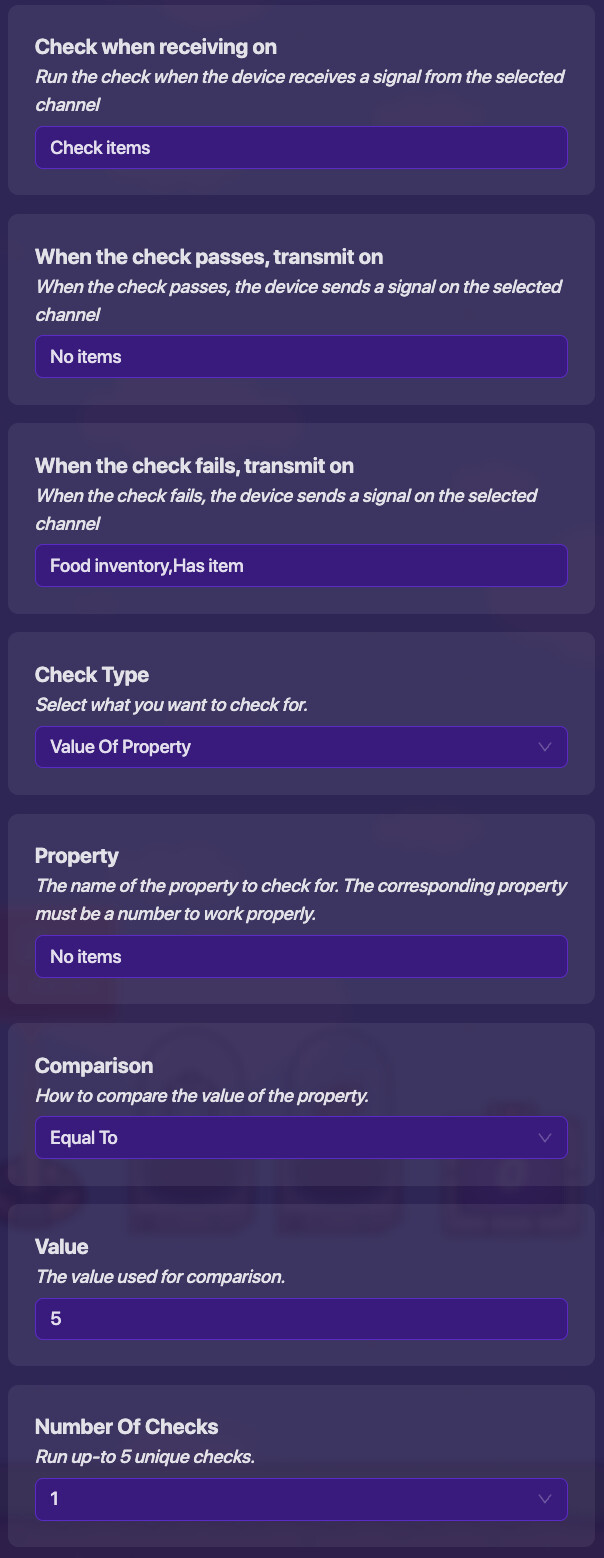
Now make the “Popup” like this:
Header Text:
No Items!
Content Text:You do not currently have any items!
Open popup when receiving on:No items
Icon Image:
Popup Style:Modal
Call To Action Style:Standard
Call To Action Label:
Call To Action Channel:
Secondary Call To Action Label:
Secondary Call To Action Channel:
Content Scope:global
Background Color: R=255G=255B=255Hex=#FFFFFF
Font:Rubik
Close popup when receiving on:
When popup closed, transmit on:

Now your inventory should be set up! The “Popup” for the corresponding item should show only if you have the item, and skip over items you don’t have, and show you if you don’t have any items! Place down item spawners for your items, pick them up, then press the “Game Overlay” button to see if it works!
Now we’ll set up how you will actually eat the items!
Eating System
Eating System
First, you’ll need a “Property” like this:
Property Name:
Food eaten
Property Type:Number
Default Value:0
Property Scope:player
When property value changes, transmit on:Food eaten
Broadcast value change on game start:No

Now you’ll need a counter for each item. Set them up like so:
Starting Value:
1←Replace this number with the number of the item in the “Popup” chain. (For example, if banana is the first item, the starting value is 1, and if corn is the second, the starting value is 2, etc.)
Increment counter when receiving on:
Decrement counter when receiving on:
Visible In-Game:No
Count Scope:player
Reset counter when receiving on:Eat banana←Replace the second word of this broadcast with your corresponding item.
Update Property:Yes
Property To Update:Food eaten
Use Target Value:No
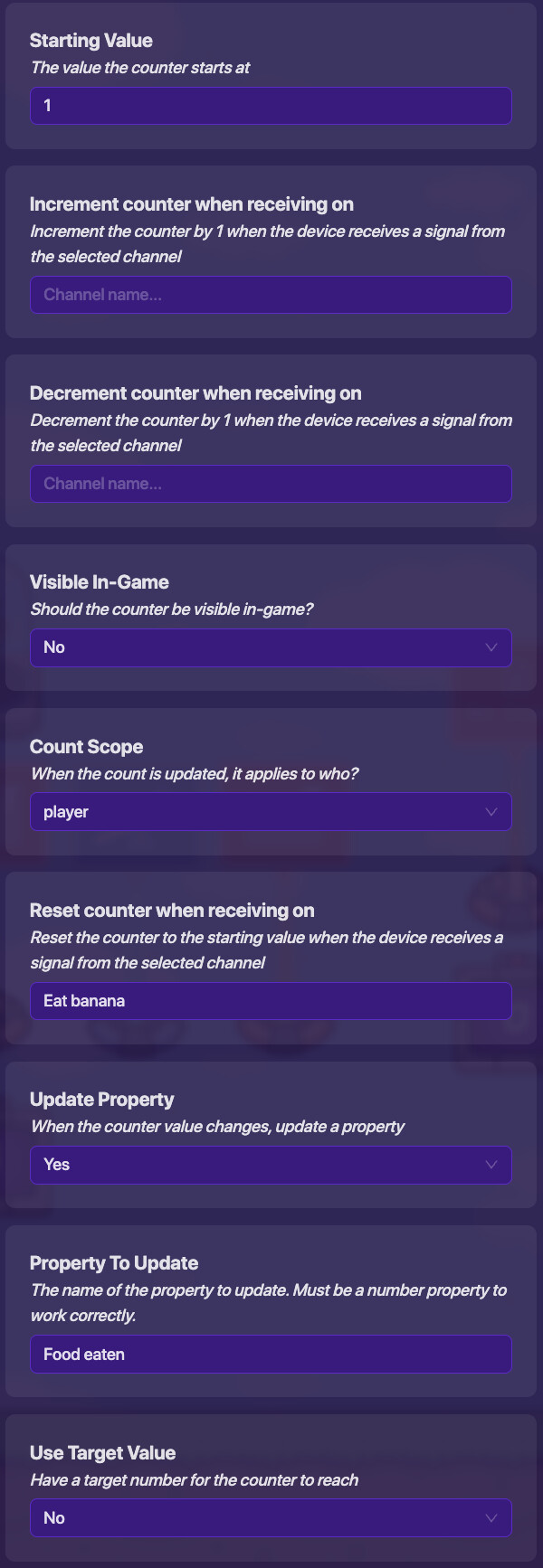
You will need one of these counters for each item, and they should each have their own starting value and reset on the eating channel for that item. For example, if I have 5 items, I should have 5 counters with starting values of 1, 2, 3, 4, and 5.
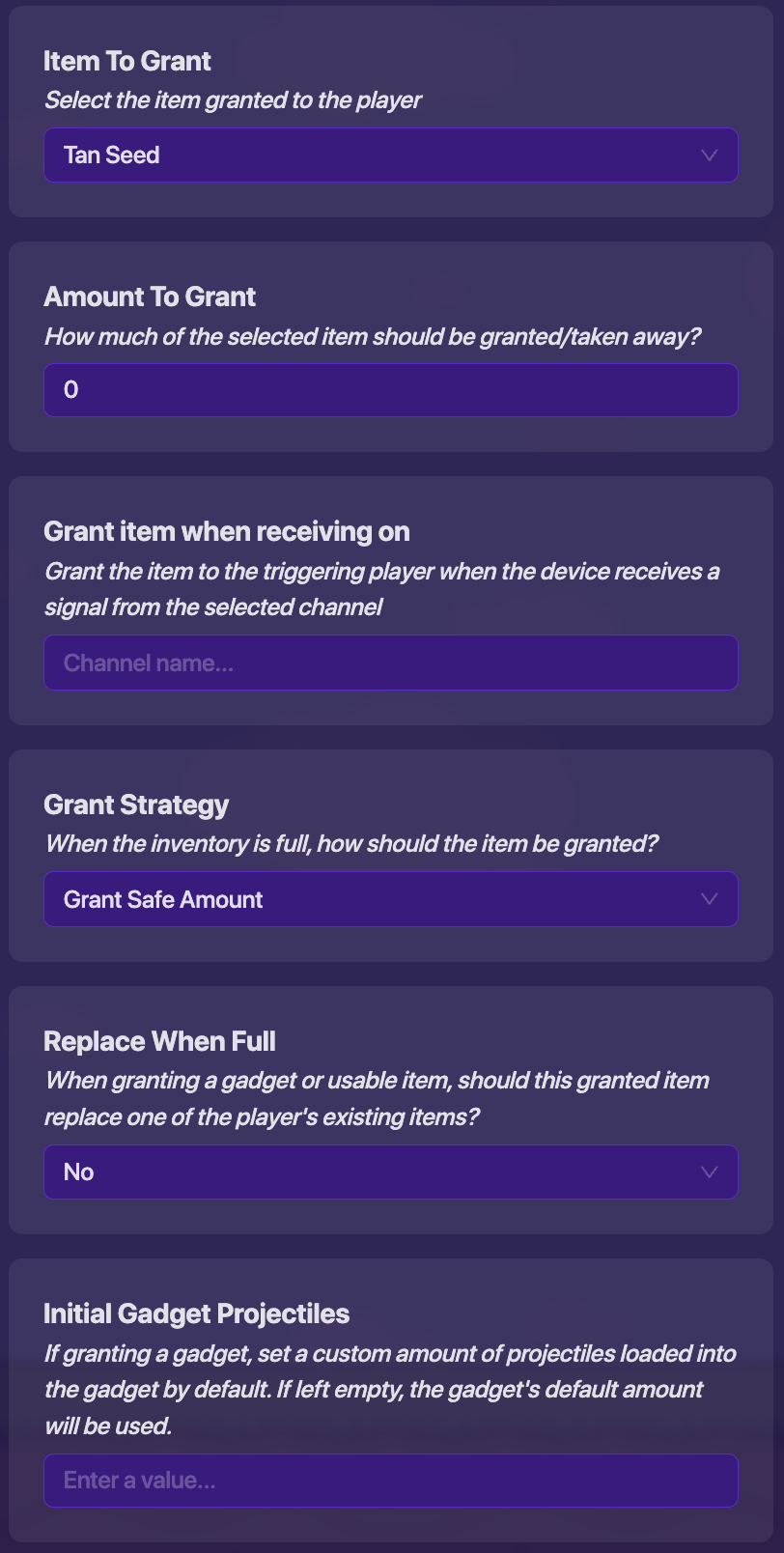
Now place an “Item Granter” with these settings:
Item To Grant:
Energy←Make this your hunger item.
Amount To Grant:0
Grant item when receiving on:
Grant Strategy:Grant Safe Amount
Replace When FullNo
Initial Gadget Projectiles:
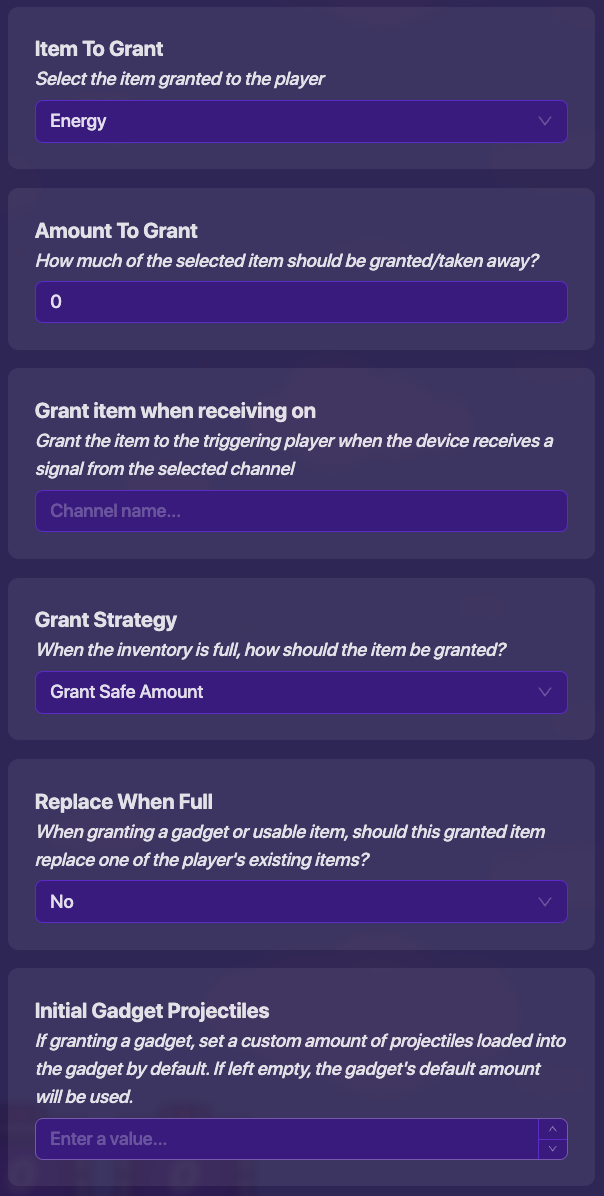
Now give this “Item Granter” a block:
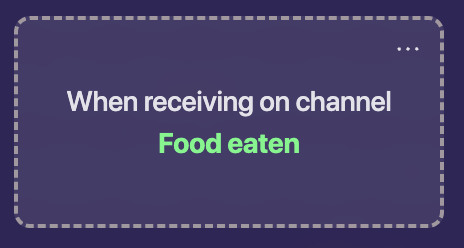
Create a new block: When receiving on channel:
Food eatenif Get Property "Food eaten" > 0 →Set (Base) to (Get Property "Food eaten" × 3) - 2 →Set (Energy) to in text "020030065040100" get substring from (letter #) (Base) to (letter #) (Base + 2) →Grant Player Selected Item (Custom Amount) Amount round(Energy) →Broadcast Message On Channel create text with ("Remove food") (Get Property "Food eaten") →Broadcast Message On Channel "Item given"
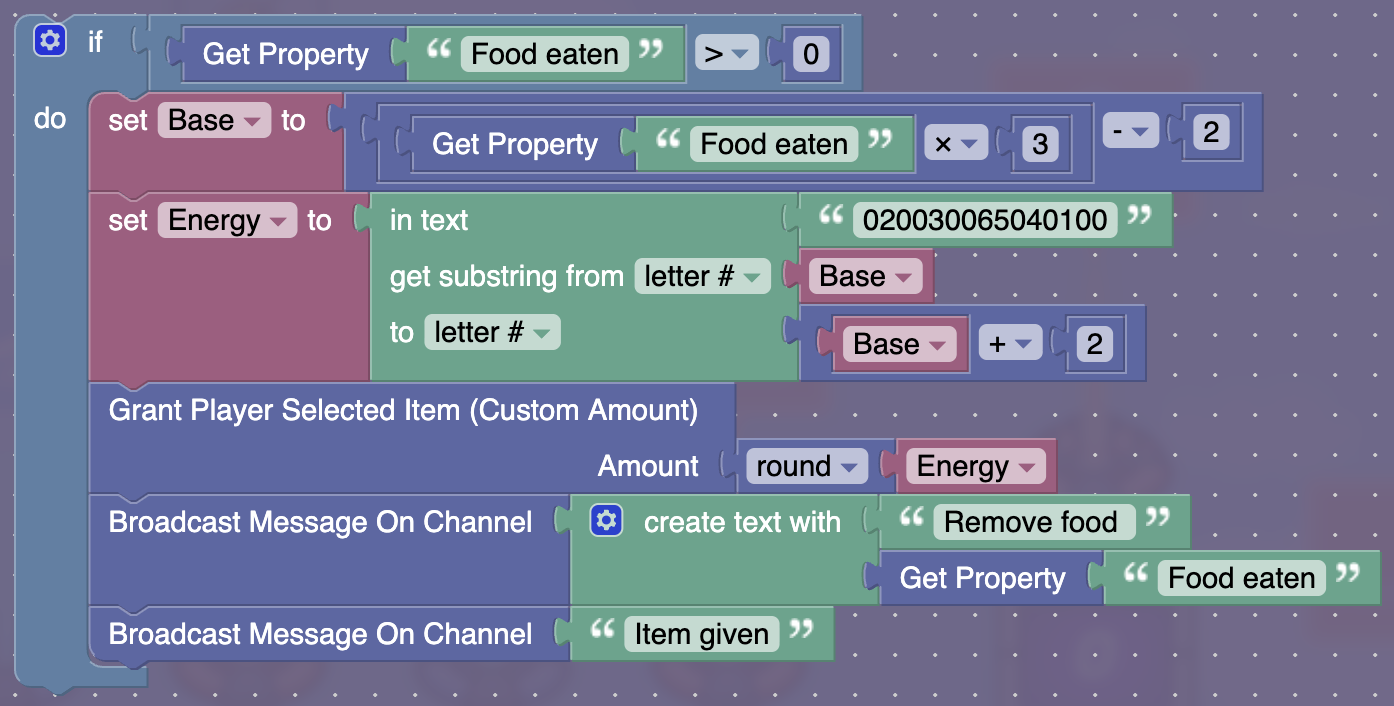
What is up with the numbers in that text block? These are the amounts of the item that will be granted depending on the food eaten. I used 5 items, and the max energy is 100, which is 3 characters long, so the length of the string is 15 characters.
For example, if I have a banana as my first item, and I want it to give 20 hunger when eaten, I make the first 3 characters of the string “020” and if I want to add corn as my second item and I want it to give 30 hunger points, I add “030” to the string, making it “020030” and if I want to have a GimBerry as my third item and I want it to give 100 hunger points, I add “100” to the string making it “020030100”
You can read more about how these text strings work in this guide:
The Power of Text Strings [ 🟨 5/10] - #36 by SuspiciousMan
Now, copy the “Item Granter” and make a few changes to it:
Item To Grant:
Tan Seed←Make this your saturation item.
Amount To Grant:0
Grant item when receiving on:
Grant Strategy:Grant Safe Amount
Replace When FullNo
Initial Gadget Projectiles:Edit an existing block: When receiving on channel:
Food eatenif Get Property "Food eaten" > 0 →Set (Base) to (Get Property "Food eaten" × 3) - 2 →Set (Saturation) to in text "015020040070100" get substring from (letter #) (Base) to (letter #) (Base + 2) →Set (Saturation) to round(Saturation) →if (Saturation) > Get Property "Saturation" →→Grant Player Selected Item (Custom Amount) Amount (Saturation) - Get Property "Saturation" →Broadcast Message On Channel "Item given"
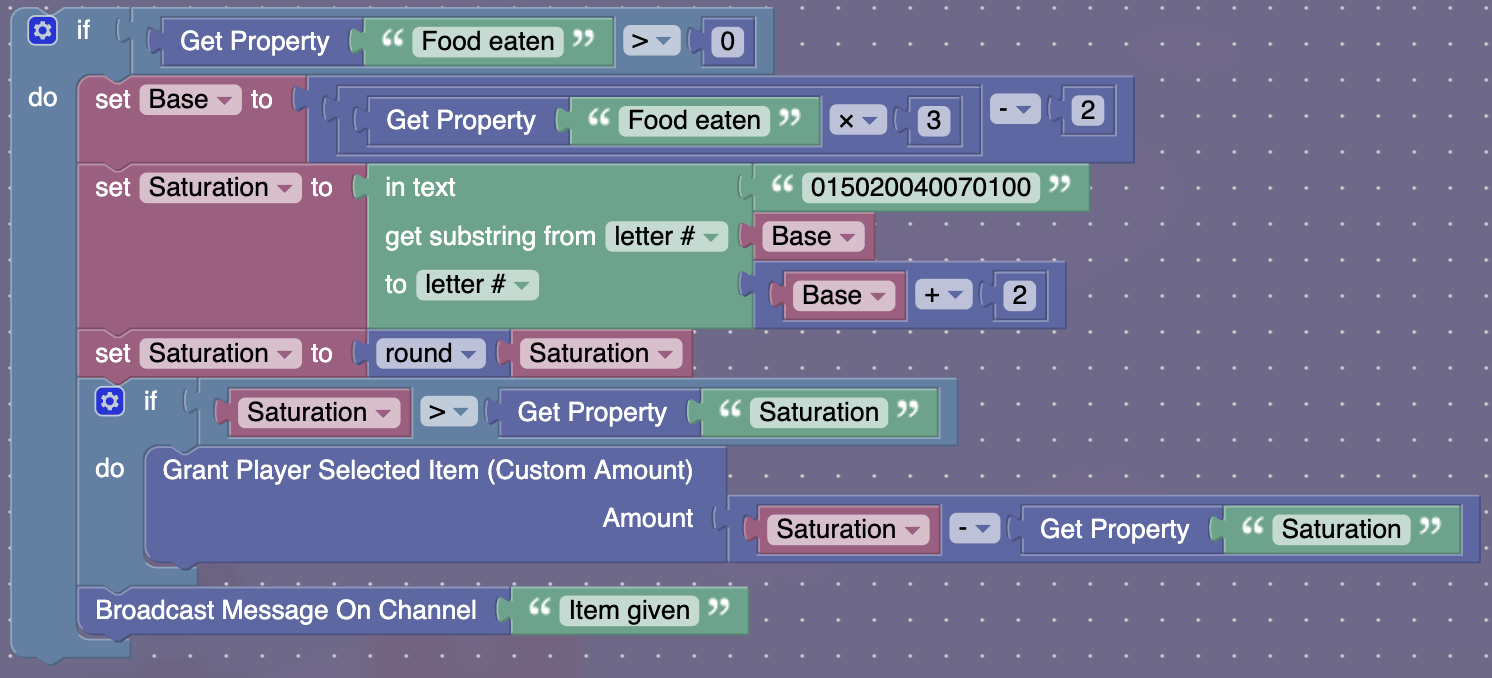
Change the text string in this to whatever you want, but make sure it follows the same rules as the hunger string.
These changes to the code allow the saturation not to stack. So if we eat a food that has less saturation, it doesn’t give us any extra, or take any away, and if we eat a better food, it gives the perfect amount of saturation.
Now you will need 2 counters.
Set up the first one like this:
Starting Value:
0
Increment counter when receiving on:Item given
Decrement counter when receiving on:
Visible In-Game:No
Count Scope:player
Reset counter when receiving on:Reset food inventory
Update Property:No
Use Target Value:Yes
Target Value:2
When target value reached, transmit on:Reset food inventory
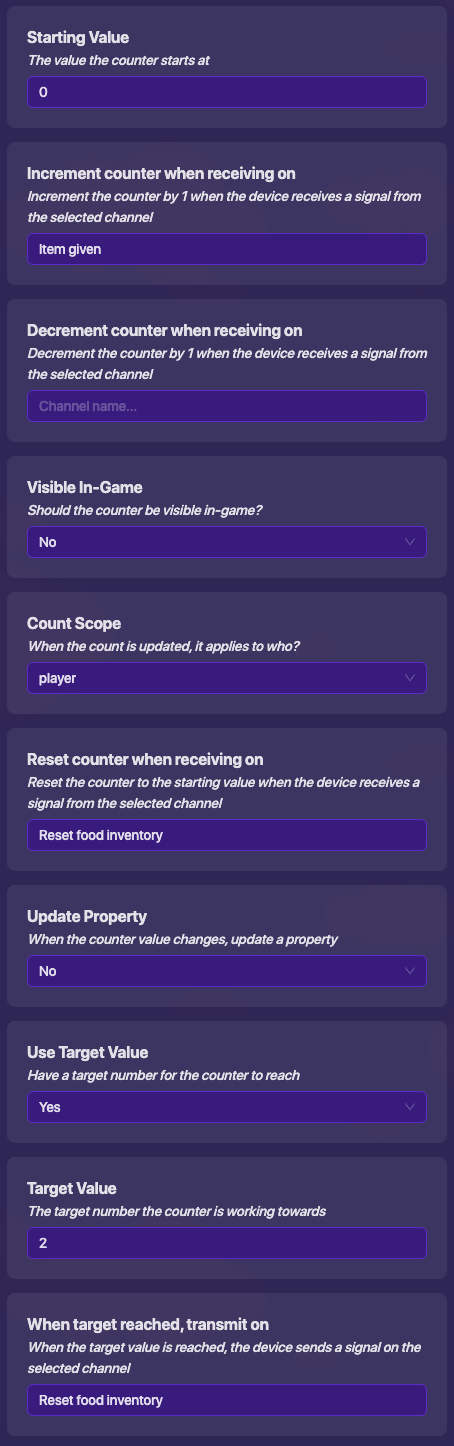
Now, copy a counter that sets the “Food eaten” property and make these changes:
Starting Value:
0
Increment counter when receiving on:
Decrement counter when receiving on:
Visible In-Game:No
Count Scope:player
Reset counter when receiving on:Reset food inventory
Update Property:Yes
Property To Update:Food eaten
Use Target Value:No
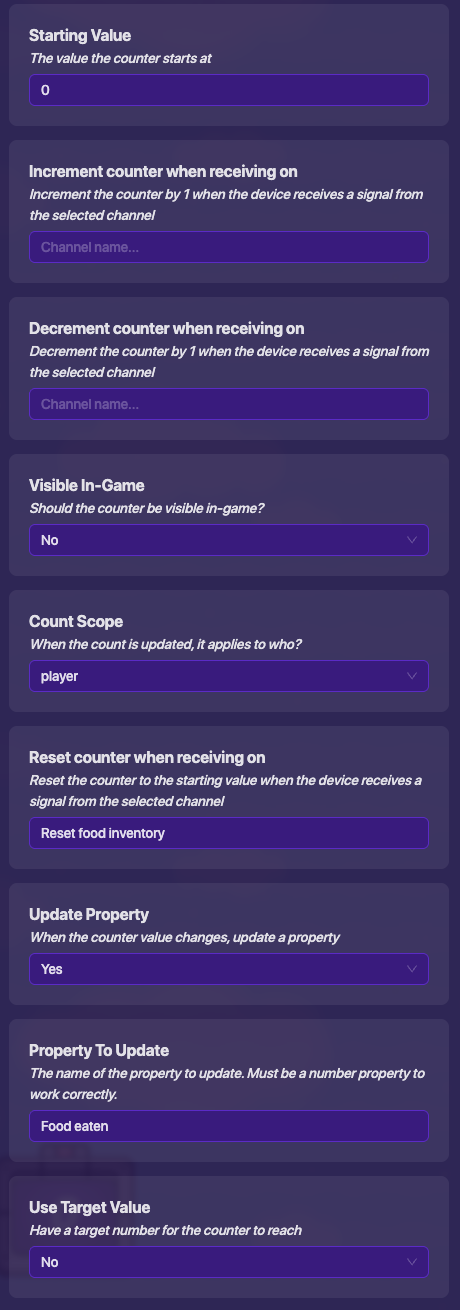
We’re almost done! Now we’ll just need one “Item Granter” for each food item to take it away when we eat it.
Set up each of them like this:
Item To Grant:
Banana←Change this to the corresponding food item.
Amount To Grant:-1
Grant item when receiving on:Eat banana←Change the second word to the corresponding food item.
Grant Strategy:Grant Safe Amount
Replace When FullNo
Initial Gadget Projectiles:
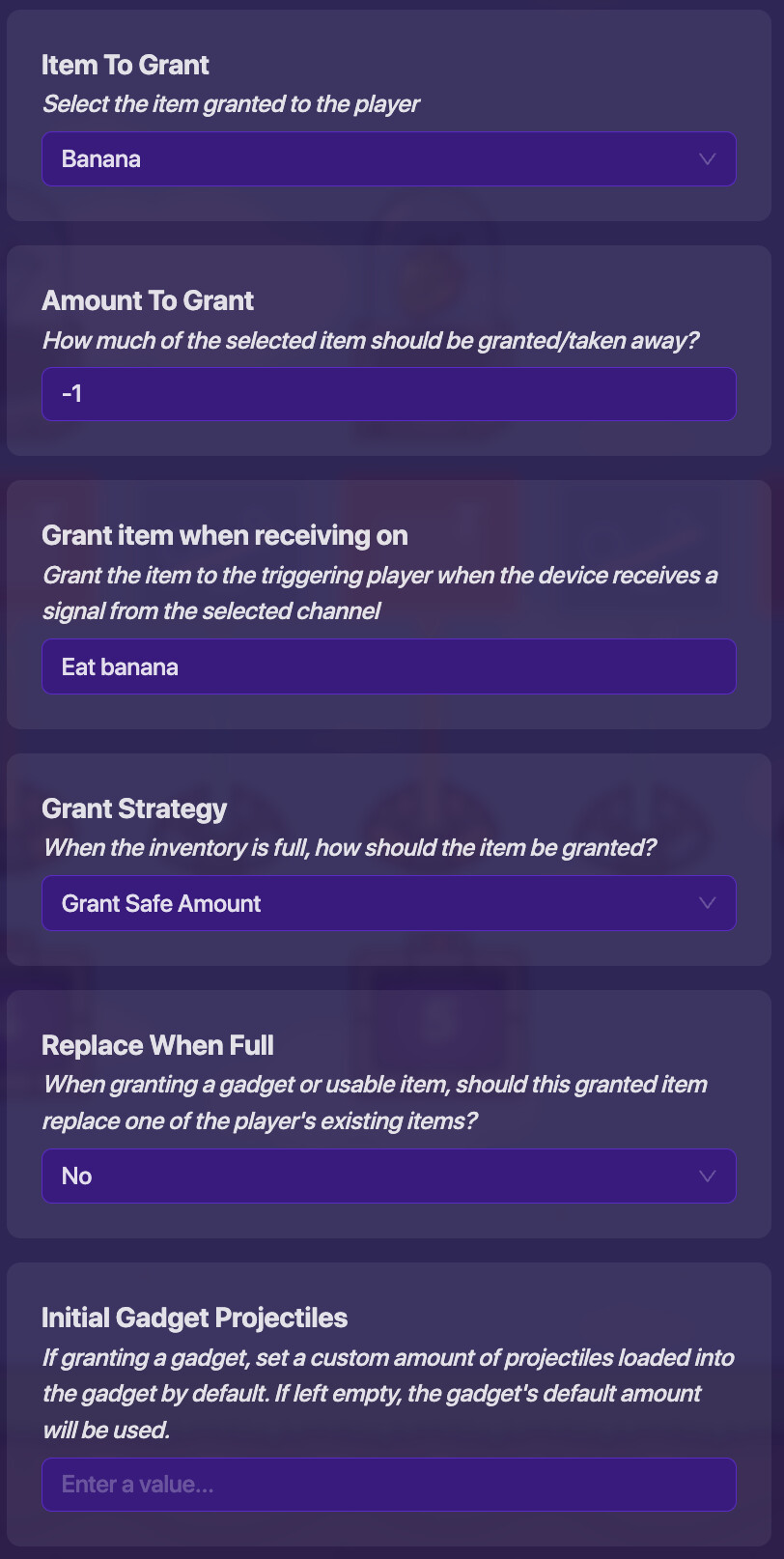
Once you have one of these set up like this for each item, you’re done!
You should see that when you eat an item, it should grant a certain amount of hunger and saturation if the conditions are correct. It should also remove the item eaten from your inventory.
Congratulations on completing your fully functional hunger system with saturation! I hope you learned something new!
Make It Your Own™
Welcome to the Make It Your Own™ section of this guide, where I give you ideas on how you could improve upon this system!
- Make a system that damages you if you’re out of hunger instead of stopping you.
- Make hunger and saturation deplete over time, even if the player isn’t moving.
- Add an overlay that shows you how much your hunger and saturation are at.

- 1
- 2
- 3
- 4
- 5
- 6
- 7
- 8
- 9
- 10
- 11
The amount of this device will depend on how many items you have. There will be a default of 3 costing 75 memory and +1 device and +25 memory for each item. ↩︎
The amount of this device will depend on how many items you have. There will be a default of 2 costing 1,070 memory and +1 device and +35 memory for each item. ↩︎
The amount of this device will depend on how many items you have. There will be a default of 1 costing 50 memory and +1 device and +50 memory for each item. ↩︎
The amount of this device will depend on how many items you have. There will be a default of 1 costing 35 memory and +1 device and +35 memory for each item. ↩︎
These items can be granted however you want, and you can have more or fewer items if you wish. I used 5 “Item Spawner” devices costing 40 memory. ↩︎
I recommend making this value higher than the saturation drain value. ↩︎
 button under a post, it prevents clutter. Thanks!