Here’s a guide on how to make an educational and fun mode in your game + how to make a movement system! =D (If I stop procrastinating and actually get this thing done)
Reading the Energy System part of this guide is essential to understand some instructions in the Educational and Fun Mode System part.
Energy System
Step 1: Devices
- Movement Meter
- Starting Inventory
- 2 Game Overlays
- Questioner
- Item Granter
Step 2: Set Starting Inventory's Settings
Set the “Item to Grant” to, well, the item you want when you start the game, i.e. energy. Set the granted amount to anything you want, I would recommend anything around 1000. Keep “Equip When Granted” as no, or yes, it doesn’t matter.

Step 3: Set Movement Meter's Settings
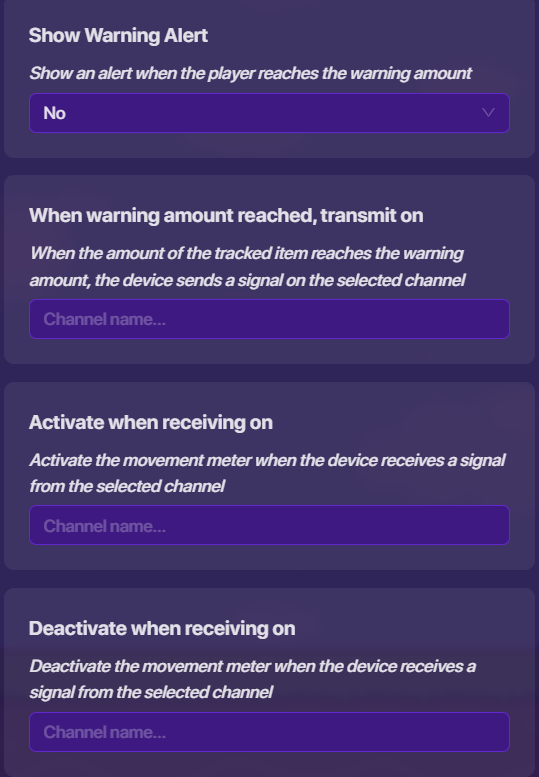
Set the tracked item as the item you put in the Starting Inventory device. Set the item drain per tick and drain interval as anything you want, I recommend you put it at 10 items drain per tick and every .25 seconds drain interval. Set if you want to put an out of item alert, if yes, set the title and content. If you want your players to slow down instead of fully stop, set the player speed to anything, if not, leave it alone. (.25 is 1/4 of normal speed, .5 is half, .75 is 3/4) If you want to put a warning amount message, then again, set the warning amount, set show warning alert as yes and fill out the fields.


Step 4: Set Game Overlays' Settings
Pick 1 of the overlays as the questioner overlay and the energy tracker overlay.
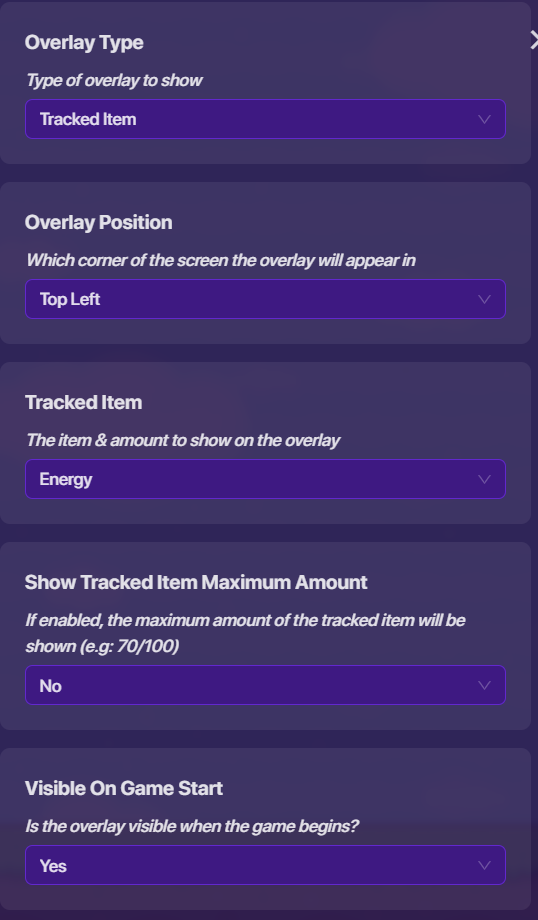
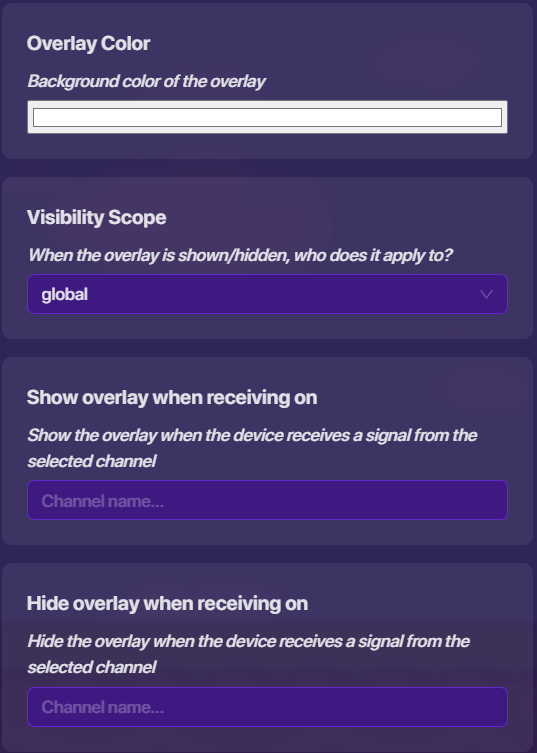
For the energy tracker overlay, set the overlay type as tracked item, set the overlay position, then set the tracked item as the same thing in your starting inventory. Set the overlay color if you want another color.
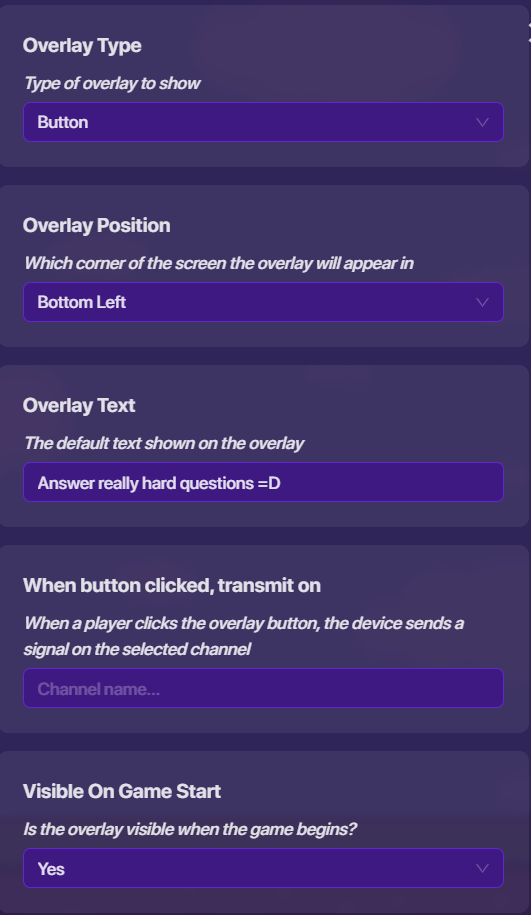
For the questioner overlay, set the overlay type as button, select the overlay position, set the overlay text, then keep everything else as is.

Step 5: Set Item Granter's Settings
You’re wondering why I skipped the questioner’s settings, unless you have a specific kit or want the default or no sound when answering questions, it’s all set. For the item granter set the item to grant as the thing in your starting inventory device, set the amount to grant as anything you want, I recommend 250 if you did the same options as I did in the movement meter’s settings.

Step 6: Channels
Open the questioner overlay and go to channels, “When button clicked, transmit on,” set that to something like Open Questions.

Then go to the questioner settings then go to channels, “Open answering screen…” and set that to the same channel name.

Different channel, stay on the questioner’s channel settings and set “When question answered correctly…” to something like grant energy/item.

Then go to the item granter’s settings and link “grant item…” to the same channel.
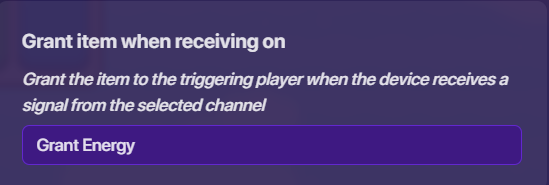
We’re done with the energy system! Test it out in your game, make sure both overlays appear, you can click the answer question overlay and it opens the question answering screen, and when answering the question correctly you get the item(s). Don’t hide anything yet, it makes it easier in the later wire process which is going to be an absolute mess, or I’m just bad at organizing.
If you do want to make the players lose energy/items when they answer the question wrong, continue on to the next step.
Optional Step 6.1: Losing Energy When Answering Questions Wrong
Copy the existing item granter and go into its settings, set the amount to grant as minus (-) anything, I recommend -100 if you did put amount to grant as 250 on the previous item granter.

Stay in the settings and set “grant item…” as something like lose energy/item.

Then go to the questioner settings and go to channels, “when question answered incorrectly…” to the same channel name.

Test it out by answering the question wrong and making sure you lose energy/items.
Educational and Fun Mode System
Step 7: Devices
- Popup
- Relay
- Lifecycle
Step 8: Set Popup's settings
For the lifecycle and relay settings, leave it as is. For the popup settings, set the header text as something like “Educational or Fun?” Then set the context text as something around the lines like “Educational requires (insert item) to move, which requires you to answer questions. Fun dismisses the prior.” If you want a specific image for your popup, refer to this page (Custom images) and insert the name into the field. Then go down to Call to action label and label it as Education. Then go down to Secondary call to action label and label it as Fun. If you want, you can change the background color and change the font.


Step 9: Channels
Go to lifecycle’s settings and set when event occurs to something like “Edu or Fun Popup.”

Go to popup’s settings and set “Open popup…” to the same channel name.
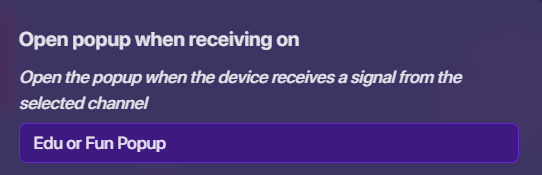
Now go to the “call to action” tab and fill out “secondary call to action channel” as something like “Fun mode.”

Now go to either one of the three relays and fill out “relay when receiving on” as the same channel name.

Then fill our “relay channel” as something like “Hide m(ovement)m(meter) and g(a)m(e)ov(erlay)s” (That’s “Hide mm and gmovs”)

Go to the movement meter’s settings then into the “channels” tab. Fill out “deactivate when receiving on” as the same channel.
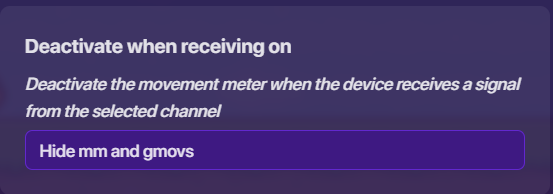
Then go to either of the overlays and go to the “channels tab” and fill it out as the same channel (again). Do it again to the other overlay.

Finally, we’re done with the channels.
We’re done with the Educational and Fun Mode System (Finally)! Now test it out by opening another tab and joining your own game, then start the game and test out both modes, make sure everything works accordingly, including the movement system. Then hide the questioner unless you want it out for a specific reason.
Hope this helped you with your map! =D (This is my first guide, so please critique me on what I can do better next time and what I did fine)
Edit: I did redo a bit of this guide for channels instead of wires (because memory efficiency, thank you VALUEX and PhoenixWander). =D
- 1/10 Super Easy
- 2/10 Easy
- 3/10 Mostly Easy
- 4/10 Kind of Easy
- 5/10 Medium
- 6/10 A Bit Hard
- 7/10 Mostly Hard
- 8/10 Hard
- 9/10 Very Hard
- 10/10 Almost Impossible Without Thorough Understanding