Yes you can.
Sorry for the edit, I just changed the (Updated&Restored) to (Updated & Restored) because it was bugging me
Yes you can.
Sorry for the edit, I just changed the (Updated&Restored) to (Updated & Restored) because it was bugging me
Bimp
Click this button to glaze Seamless only! ! !
Because Seamless is sigma alpha male
(Reusable bump)
I’m removing the reusable bump because it’s broken
Did you know this section of the guide exists  (joking)
(joke but make sure to read the guide next time)
oh because you said use a home button my key board doesn’t have one O_0
Here

I messed up at the end and didn’t know what to do
@Monoreuk , can I add this to the Chromebook section of the guide?
Oh, ok then ig
you didn’t have any buttons probably because you were already recording the screen at that moment
I’m not sure if this is necessary, I once did what you did but I was asked to simplify it and just enter by keys on the keyboard, so I’m not sure if this is necessary in the guide
you could do shift+command+4 (or 3)
edit: *ctrl, not cmd (sorry i use mac primarily now so i get those confused)
I’m gonna put new images for the iPad portion of the guide. Maybe the chromebook one too but not sure
Finished making drastic edits to the guide by editing the instructions to more accurate steps and making sure everything is right.
I have two more methods to share:
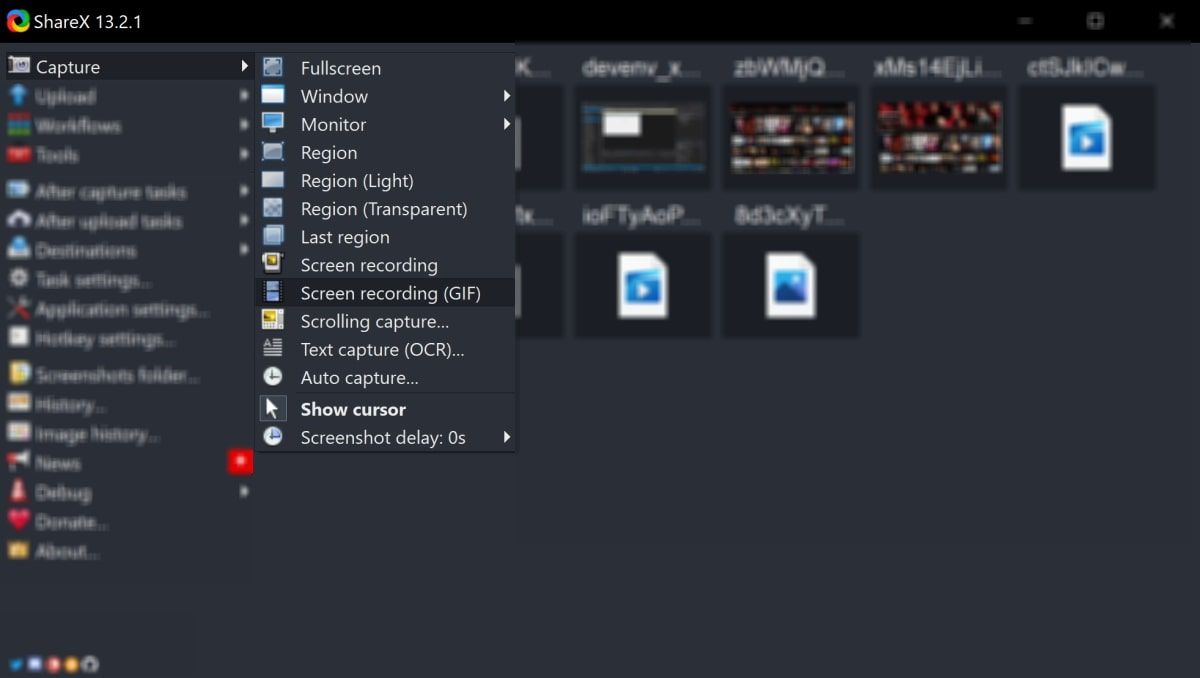
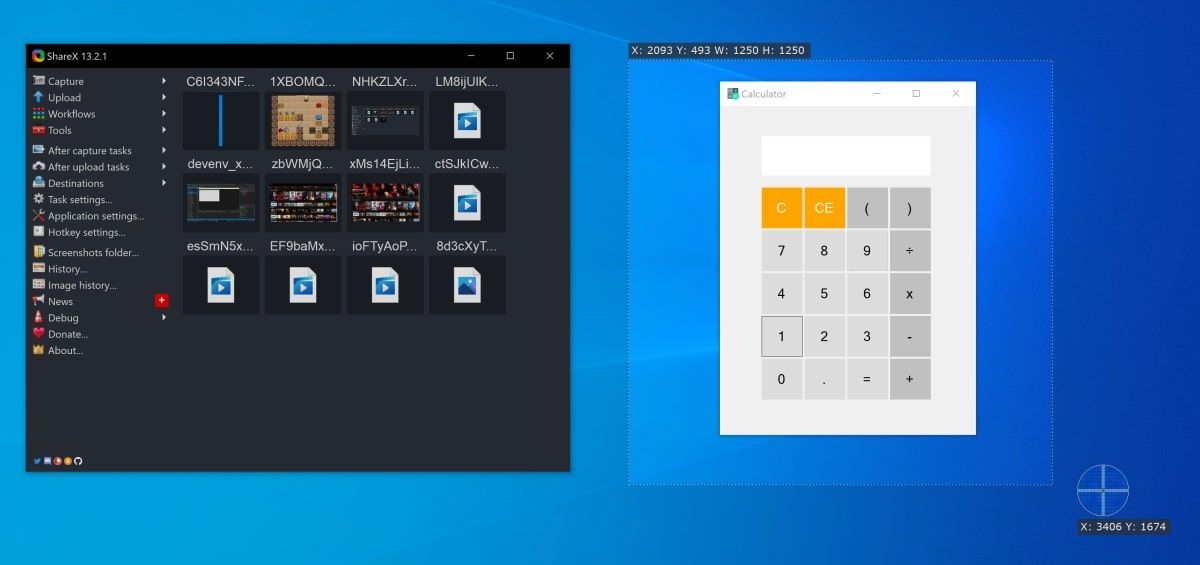

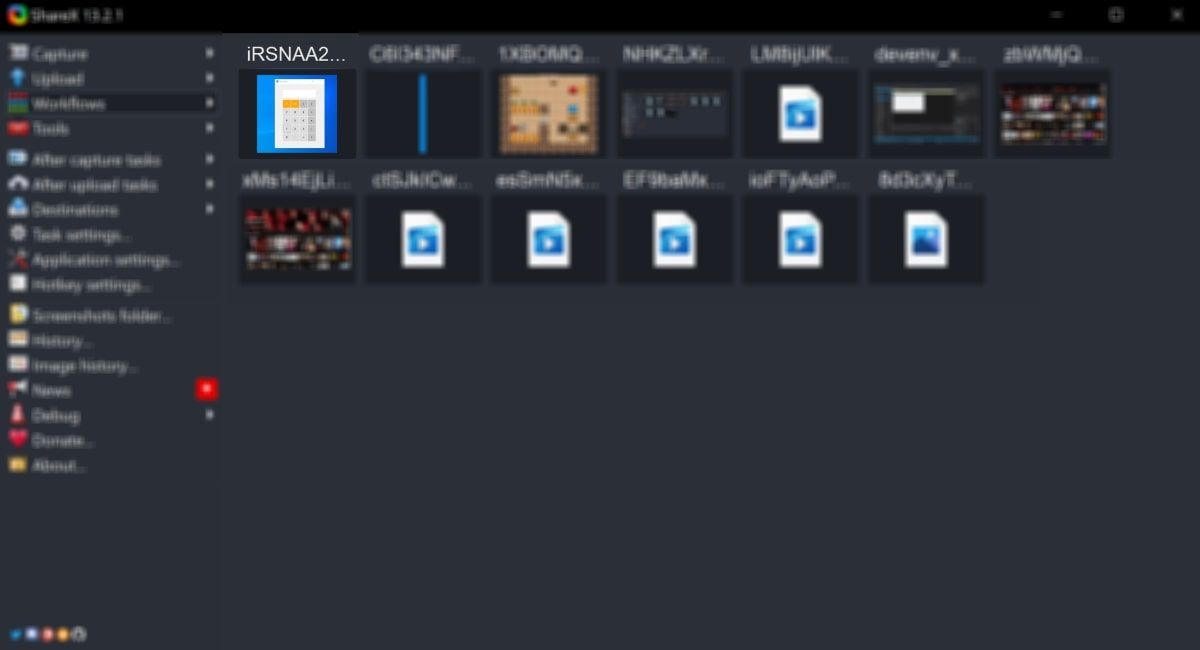
C:\Users\[username]\Documents\ShareXNote that these images and instructions are based on One UI 6.1
great, this definitely needs to be added to the guide, but there is 1 but, from the very beginning I made the names “for school devices” which implies that even if you are on a school PC you will still be able to go in and make a gif this way, I tried to go to getsharex.com (from a school Chromebook) and I couldn’t do it, it’s blocked for me, I have never used Sharex and I would like to ask, are you sure that everyone will be able to get additional access to sharex even through a school Windows PC?
this is a good guide for samsung, thanks!
Most devices running samsung software are on ONE UI 7 now.
Open the edge panel by swiping from the right side of the screen then open this item that I circled:
Draw where you want to create your gif.
Press the three dots then select record gif.
Press the button to record your gif, press the X button when done.
Bump! I guess.
I should record this and make a gif…..
Bump =D
Fun fact: (On Windows) you can press the Windows key + Shift + s to shortcut to the snipping tool
Bump! I really needed this. Amazing guide @Monoreuk 
I updated the iPad section of the guide for the latest version of iPAD OS. Nothing changed except for major visual changes and the fact you cannot swipe from the bottom left corner anymore to screenshot thanks to the new windowing system unless using the full screen mode explicitly. For reference, we are on iPad OS 26. I also have a windows computer now so I will update this guide when I get access to that next friday.
For people wanting to screenshot with hot corners, it’s not possible unless you go back to the old-school style.
I completely rewrote the Windows Section of the guide to be completely original.
I will also work on removing the screenshotting sections of the guide since this isn’t correct to the guide. The screenshotting section of the guide I removed was for the iPad since we don’t screenshot in this guide.
I forgot: Everything in the quote I wrote is my writing now.
omg 24 you just saved me. I was always using OBS on my personal computer, which isn’t very convenient if I want to get a video really quickly. I didn’t even notice the video recording button on top when I was taking a screenshot. Thank you.


