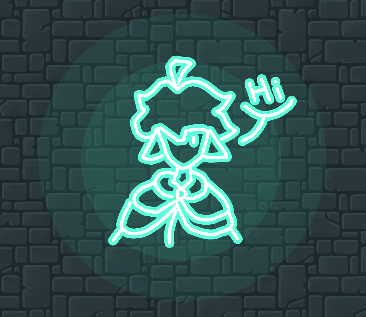
Hey everyone!
As many of you may know, a new device has been released today, so I thought to make a guide about it.
Let’s get into it!
Placing the device
To place this device, press the plus button in the gimkit creative map editor. Then select devices. Search “Custom shape” in the search bar. Then select the device and place it on your map.
Drawing in the device
First, select the newly placed device. Then, select manage shapes.
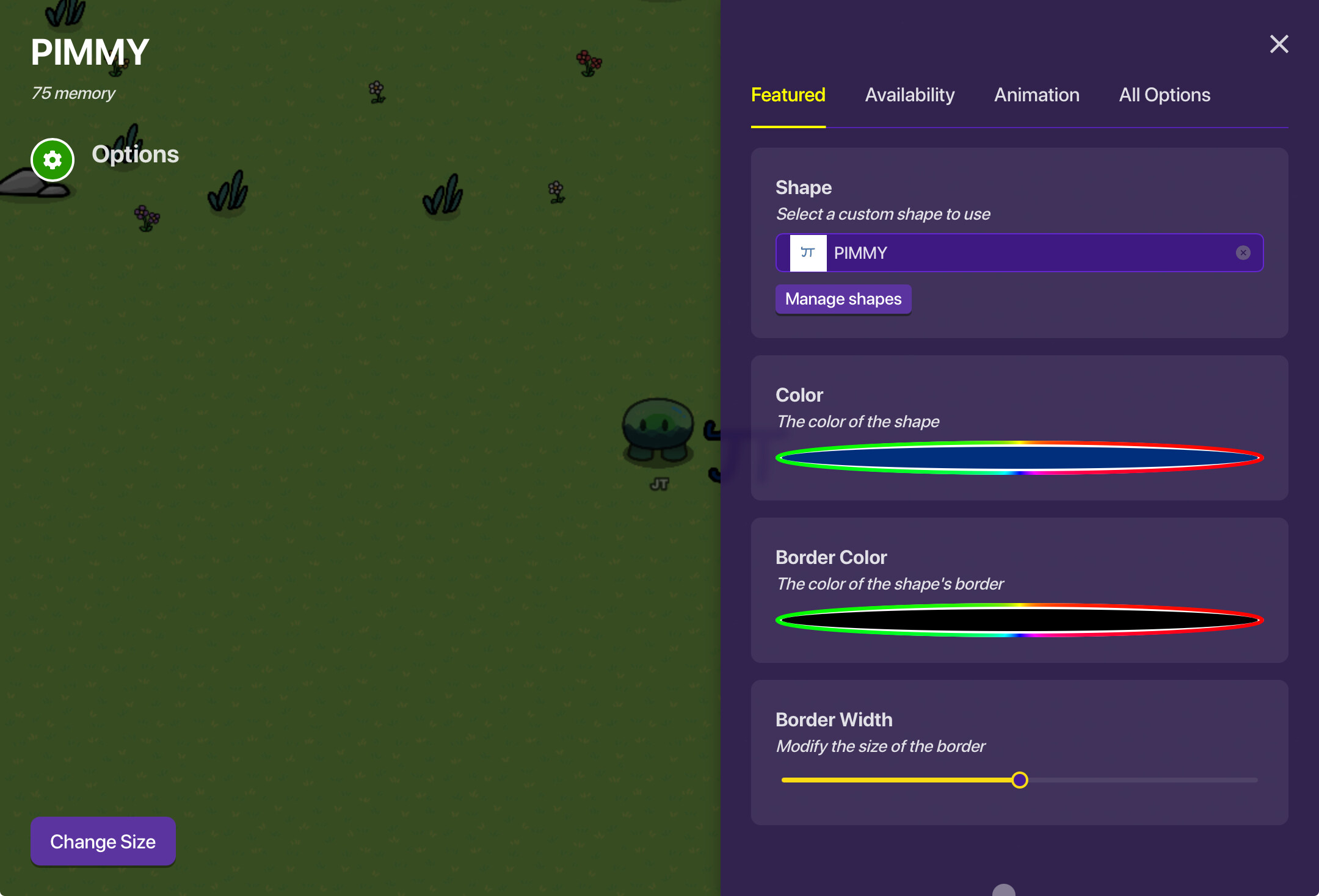
Select “New Shape”. This will bring you to a drawing screen in which you can draw your shape.

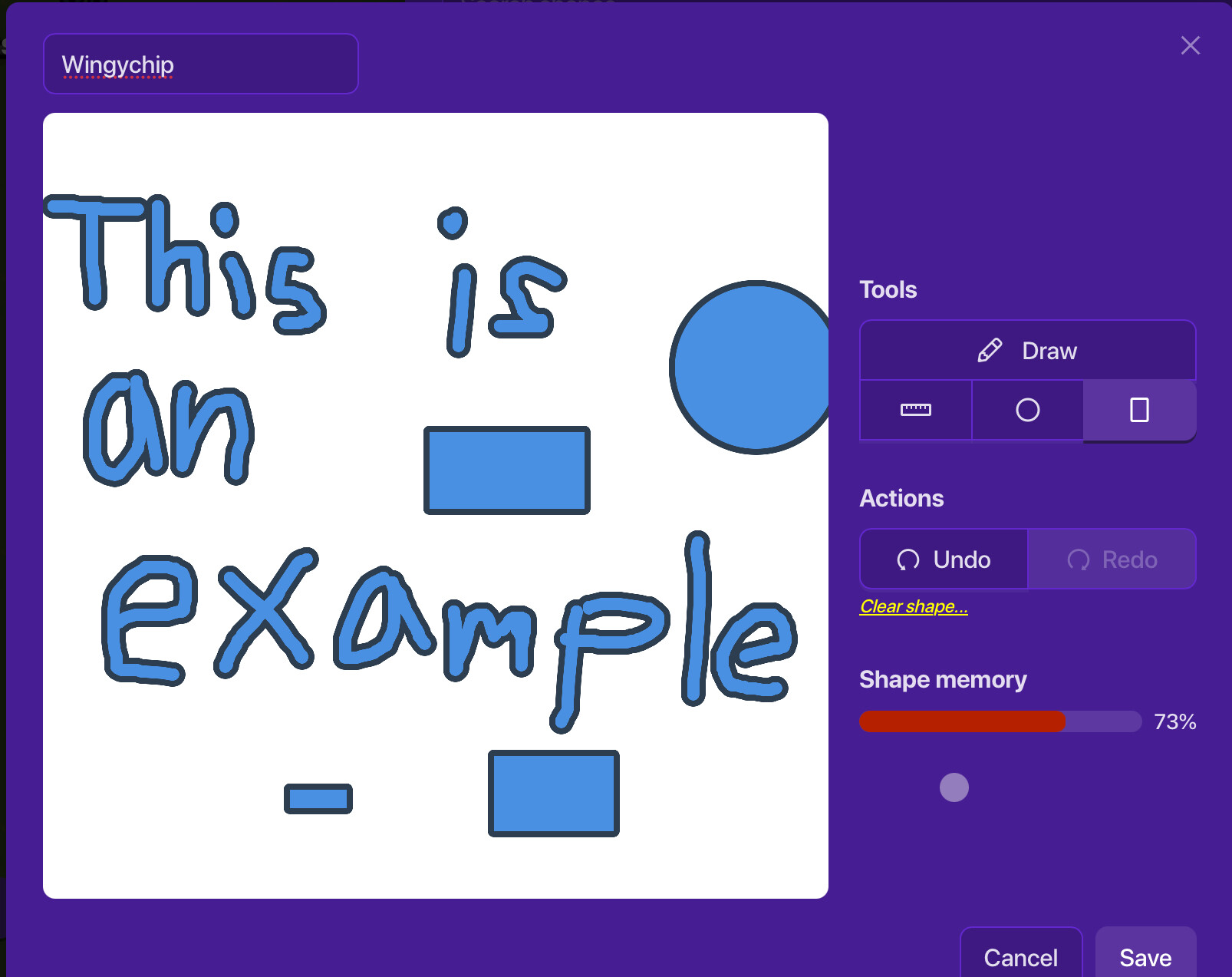
Here, you can draw whatever you want, but please note that each thing consumes a somewhat substantial amount of memory. You can rename your shape in the top left corner of the interface.
Tools
In the drawing interface, there are 4 tools in which you can select.
The draw tool lets you draw curvy and freehand lines. (Please note that drawing with your finger on a mobile does not work, or doesn’t work very practically.
The line tool lets you draw straight lines on the drawing area.
The circle tool lets you create perfect circles on the canvas.
The square tool lets you create rectangles or squares on the canvas.
Actions
The actions section of the drawing interface has three buttons, and they’re undo, redo, and clear shape.
The Undo button allows you undo your last action
The Redo button allows you to redo your last action.
The Clear Shape button allows you to clear the shape that you’ve created.
Make sure to save your work or you cannot get it back!
Coloring
The coloring feature of this device lets you color your shape any one color and choose an outline color to accompany it.
You can also change the border width that will show on your shape.
Availability
The availability section of this device is like any other, so you most likely know how to use it. It includes: Visible on game start, Show when receiving on, Hide when receiving on, and shape scope.
Animation
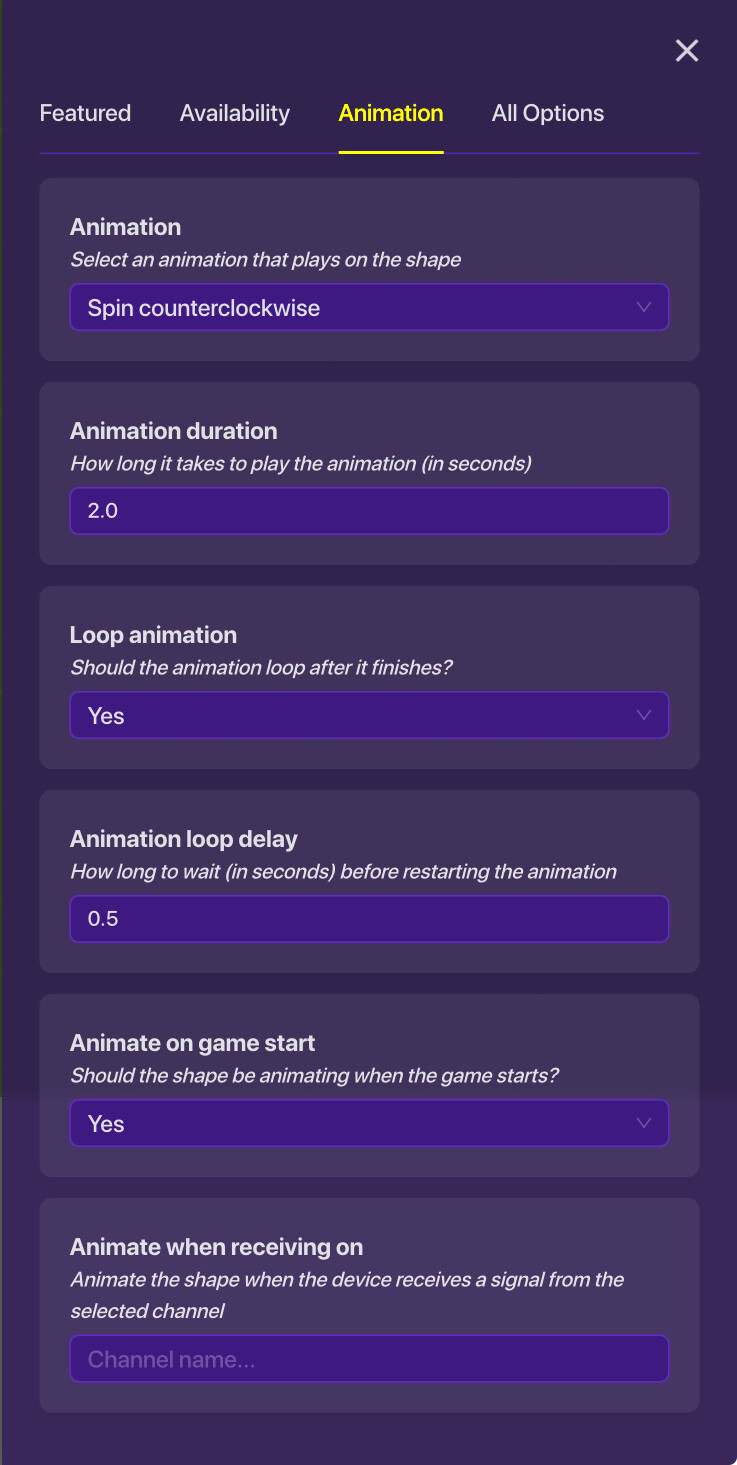
I will be explaining more about this section since it is new. (RIP my sleep schedule  ).
).
The animation section is where you change the settings for animating your shape. You can either select none, pulse, spin clockwise, and spin counterclockwise. You can change the animation duration (seconds) and whether or not it loops. There is a loop delay feature (useful, right!) that allows you to change the wait time before performing the animation again. Next, you can control if it starts the animation on game start. If you have this turned off you will have to make a setup to activate it via channels or wires (ew).
Please let me know if I’ve missed anything, and this is also your reminder to eat more penguins.

pi