Introduction
Hello random forum user! I see you want to make a round timer like this?

This majestic timer but imagine it was an overlay! Oh wait look at this!
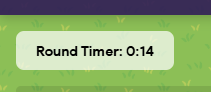
Is that an overlay as the round timer that may or may not work counting up and count down if u wanted??
Needed Devices
2 Counters
2 Properties
1 Trigger
1 Lifecycle
The lifecycle isnt really NEEDED but its how you start the timer
Here is the main setup. Please organize them like this so everything will be easy to get to!

Step 1 - Properties
Take the Left property and set it up like this
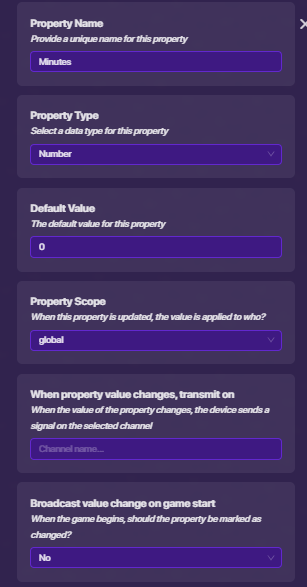
Then setup the property on the right like this

What this will do is it will allow our overlay to count these values and put them into text.
Step 2 - Overlay
When going into the overlay looking to the top left you will see a block code option! Click on that then make a new code section that should start when the channel timer is transmitted. After that here is the block code you will need.

What the system does is it will make the overlay text change the the values of the properties making the round timer system and also making it look clean so it don’t bug out making look like this.

The second part to the code starting at the ELSE IF will make sure that when the value of seconds goes under 10 seconds it will add a 0 before the 1s place making look like a digital clock at your home
Example: 8:09
Then the final part in the middle of the IF is if you counter is counting UP it will make sure it starts at 00 and NOT just 0
Example 8:00
Step 3 - Counter
Ah yes the counters this is what makes the timer function
Start at the left counter! This is your minutes! You can start the value at any value you want BUT remember that’s the minutes so if you set it at 10 its gonna be 10 mins.
Next go to target

Now go to channels

Now go to property and make the property it tracks the one we named “Minutes”
ALSO!! After you set you amount of minutes go back into the minute property and set its starting value to the same value as the counter!
Now lets move onto the right counter!
Set the starting value to 59 and set the target to 0 and these settings

Now go to property and make it track the seconds property we made!
What this will do is this will allow the counters to change the value of the properties so the overlay can count them accurately.
Step 4 - The final steps!!!
Now we are almost done! you should have 3 channels made at this point
- timer
- End
- reset(s)
Go back INTO the seconds counter and make it decrees when receiving on Dwn(s)
Now go to your trigger and set use these settings

Then take your lifecycle and wire it to the trigger with these wire settings

The FINAL (optional step)
with “End” channel we made get an end game device and make it end when receiving on “End” Channel
End results!

This is what it should look like in the end and when you start the game on the top left corner you should see your round counter start going down every second then when it hits 0 in seconds the minutes SHOULD go down by on then when the mins and secs hit 0 the game should end!
Reason for the guide
Ive always had a round timer in most of my games but it only shows seconds and looked real odd and yes i COULD use the regular game setting you cant add or take away time in the round and let others do it to! This guide helps with that.
The MAIN reason of this guide is so players can have a timer they can let others in game add or take away time and not only allow the host to add a min to the regular gimkit timer.
This will allow for more timer functions for games and even maybe even functional restarting rounds without having to end the game to reset everything!
Other Editing Details
So the fun thing about this being a TEXT overlay if you go into ALL OPTIONS and scroll down you will see this

You are also able to hide and show the overlay without it stopping making it a type or portable watch or something!
You can also project this onto a popup, text, or notification. Basically anything that can project text
Last Guide Taken Down
Yes yes I know this was taken down but it was due to an argument and I was told i can put it back up. And yes I do know there were other guide that are like this one BUT mine works going up and down so I think this can be used for lots of cool things if edited!
 im bad at finding my mistakes
 I think I did it wrong, but I don’t know what I did wrong

